

Published on March 31, 2025
4 min to read
More Than Social: Vista Social’s Calendar Now Lets You Plan All Your Marketing

Summarize with AI

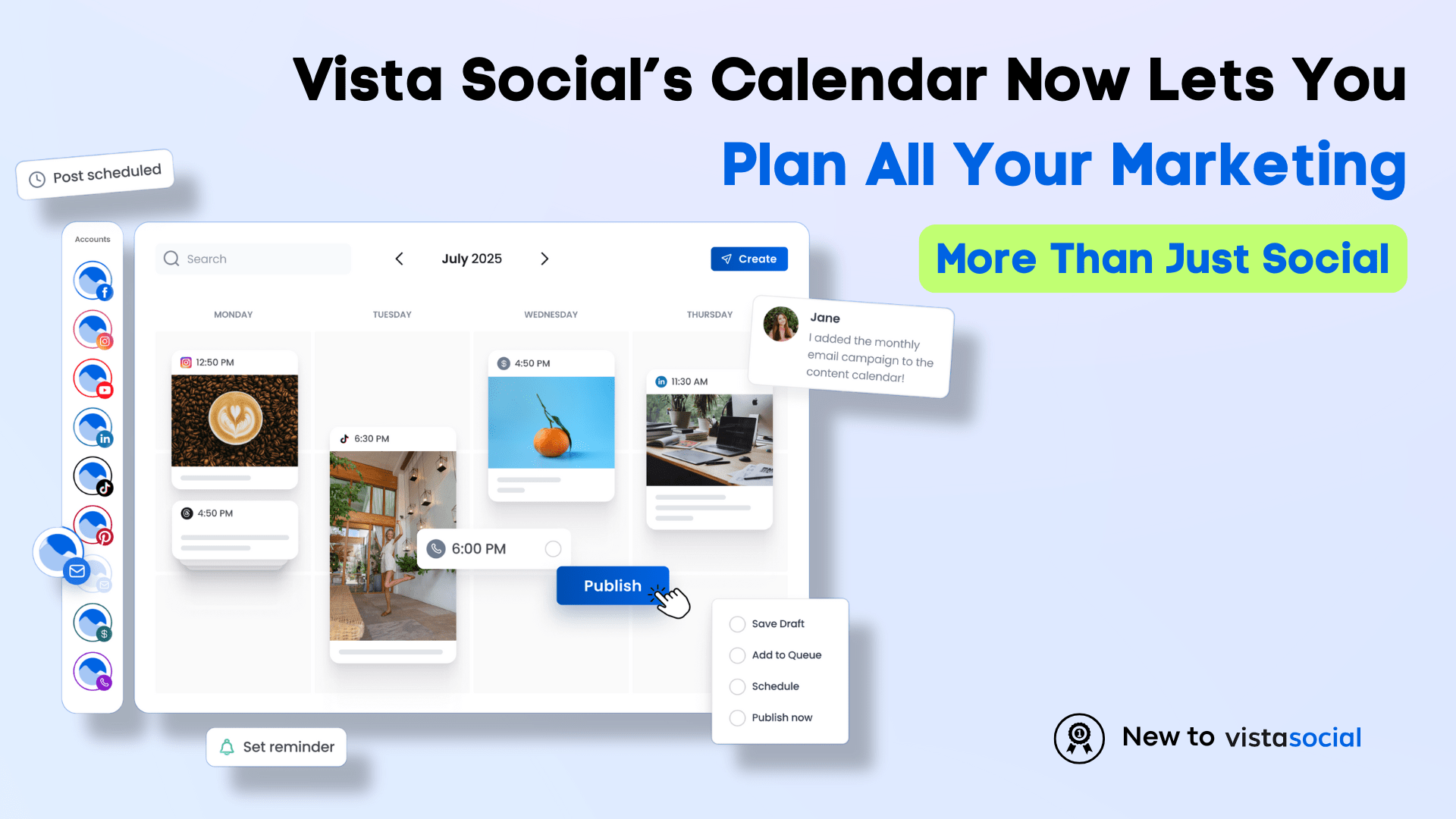
Table of contents
Summarize with AI

ChatGPT

Claude

Perplexity
Share

Vista Social

X (Twitter)


Vista Social’s calendar has long been your hub for scheduling across 20+ social networks and platforms: Instagram, TikTok, LinkedIn, Pinterest, and more.
But let’s be real. Marketing doesn’t stop at social. You’re also managing email newsletters, website launches, SMS campaigns, ads, and offline promotions. And until now, keeping track of everything meant juggling multiple tools, sticky notes, and endless open tabs.
That changes today. Vista Social’s upgraded calendar now brings all your marketing campaigns into one place.
No more scattered tracking. No more “Did we send that email?” moments. Just one powerful, centralized calendar that keeps up with your workflow.
Table of contents
What is New in Vista Social Calendar?
Until now you could only see posts for profiles connected to Vista Social on your calendar (unless you had integrated with an external calendar.) While this gave you a bird’s eye view of your social publishing, it didn’t include several other key channels that you are probably managing, such as:
- Emails (newsletters, drip campaigns)
- Blogs (announcements, SEO articles)
- Landing pages (product launches, promotions)
- SMS campaigns (flash sales, reminders)
- Sales collateral (brochures, decks, case studies)
- Ad campaigns (paid social, Google Ads)
- Offline marketing (events, billboards)
Most of these live in different tools, requiring manual tracking and constant communication between teams. That’s where Custom Profiles come in.
Custom Profiles allow you to create a new profile for any marketing channel and plan its publishing directly in your Vista Social calendar. Instead of bouncing between tools, you get a single source of truth for all your marketing efforts.
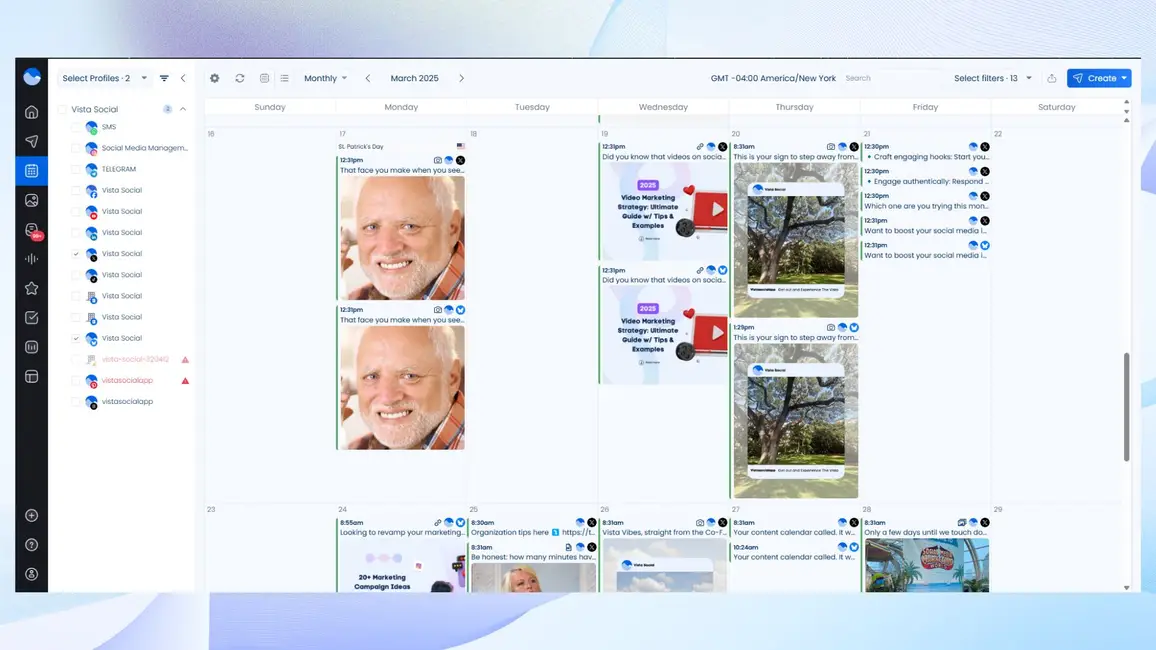
Plus, Custom Profiles aren’t just for tracking. They also help you send reminders to your team, so key content doesn’t slip through the cracks.
How to Create an All-In-One Marketing Calendar with Custom Profiles
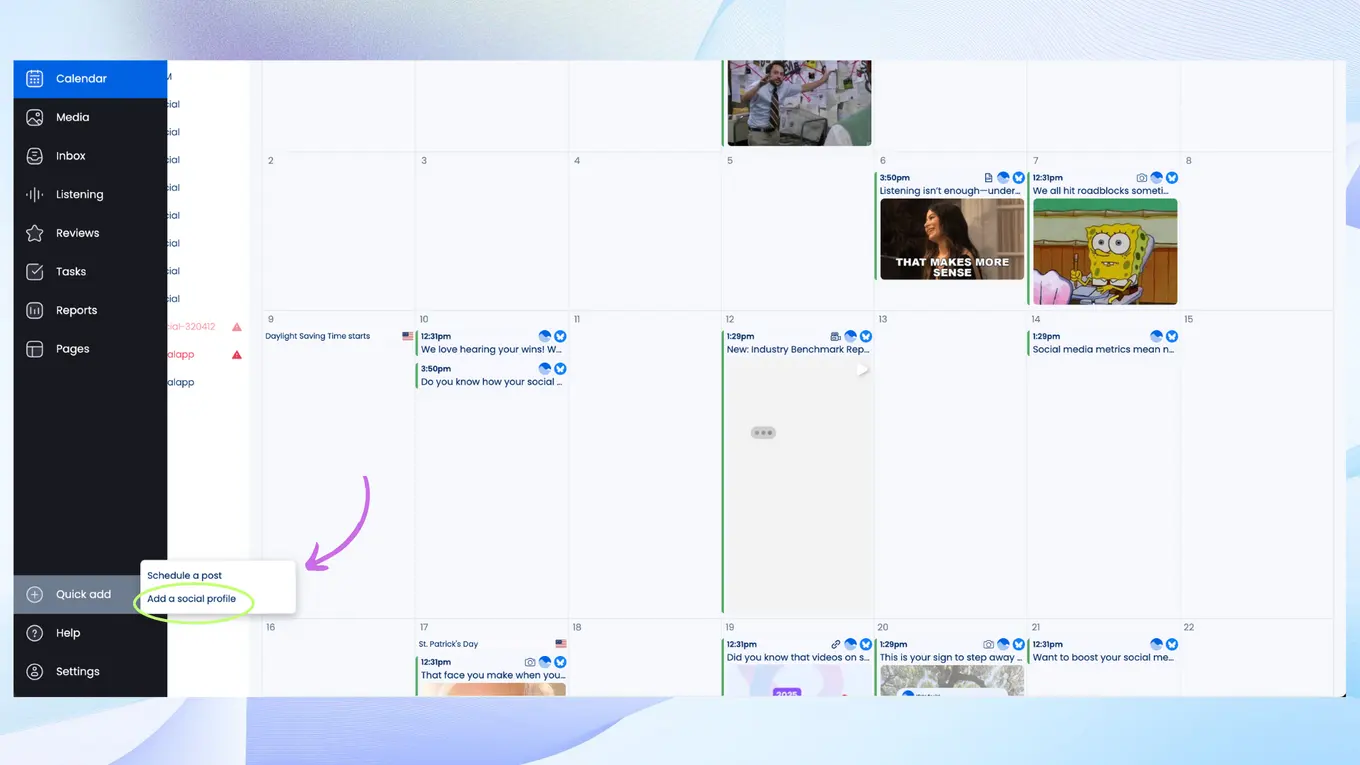
Setting up your Custom Profiles is as easy as adding a new social account.
1. Go to Quick Add → Add a Social Profile
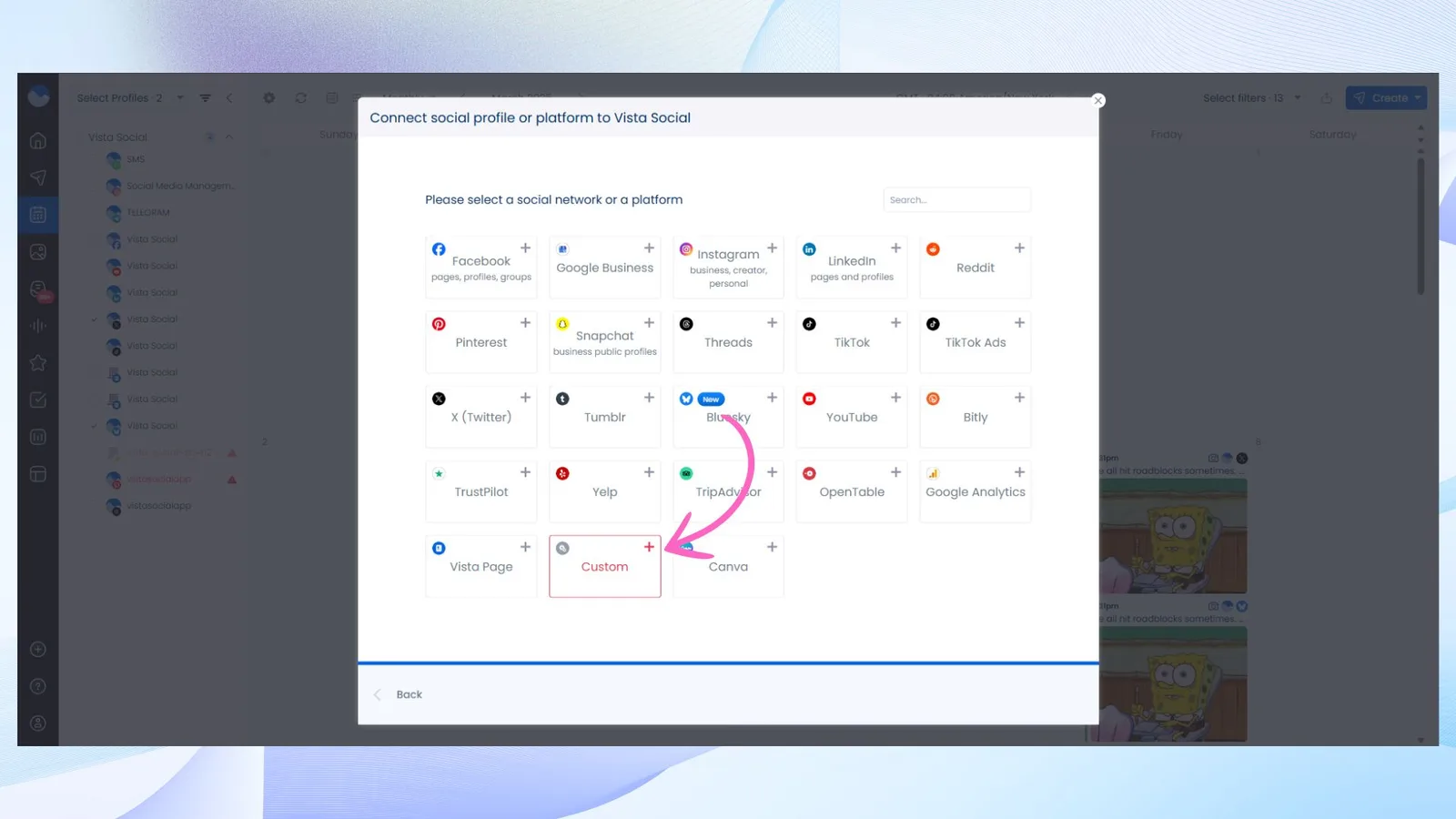
2. Select Custom Profile and give it a name (e.g., “Email Marketing” or “Ad Campaigns”).
3. Upload an avatar and icon (optional, but helpful for quick recognition).
4. Click Create—and just like that, your new Custom Profile is ready to use.
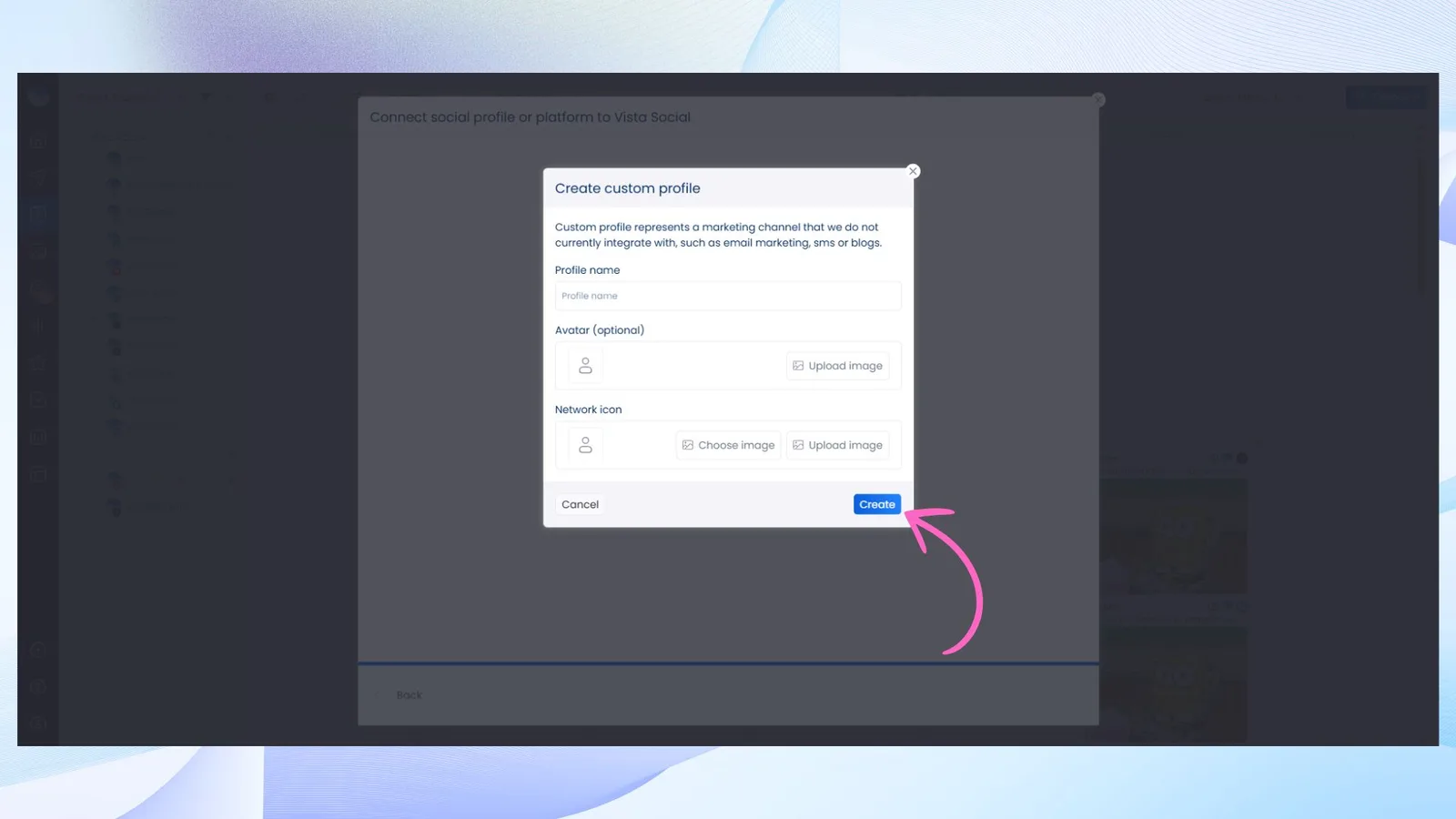
Now, whether you’re planning a blog post, an SMS reminder, or an email campaign, you can plan it on your Vista Social calendar just like a social post.
[Must Read: Introducing AI-powered Industry Benchmark Reports for Social Media Managers]
How to Publish on Your Custom Profiles?
Note that Custom Profiles don’t directly integrate with external platforms. Therefore, they won’t automatically publish anything you schedule.
But don’t worry: reminder notifications ensure nothing slips through the cracks.
Reminder notifications help you send timely emails to designated team members, prompting them to publish on Custom Profiles at the scheduled time.
Here’s how they work:
1. Select your Custom Profile and go to Create → New Post
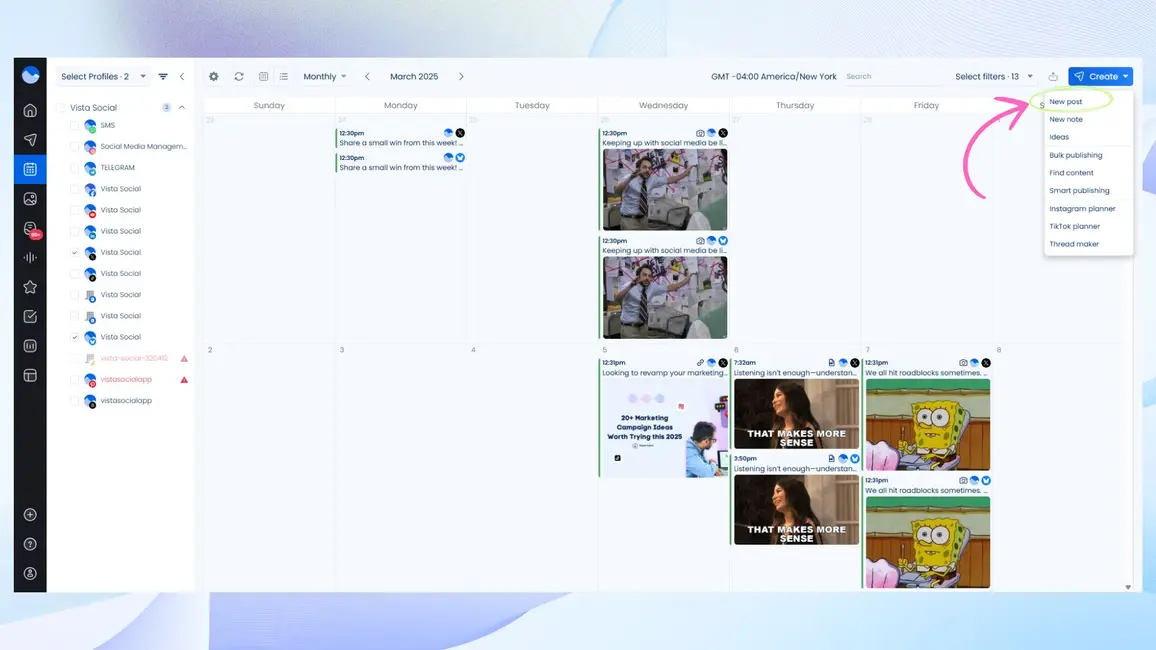
2. Write and format your post. Just below the post creator, you’ll see two options
- Consider published at scheduled time
- Send reminder notification
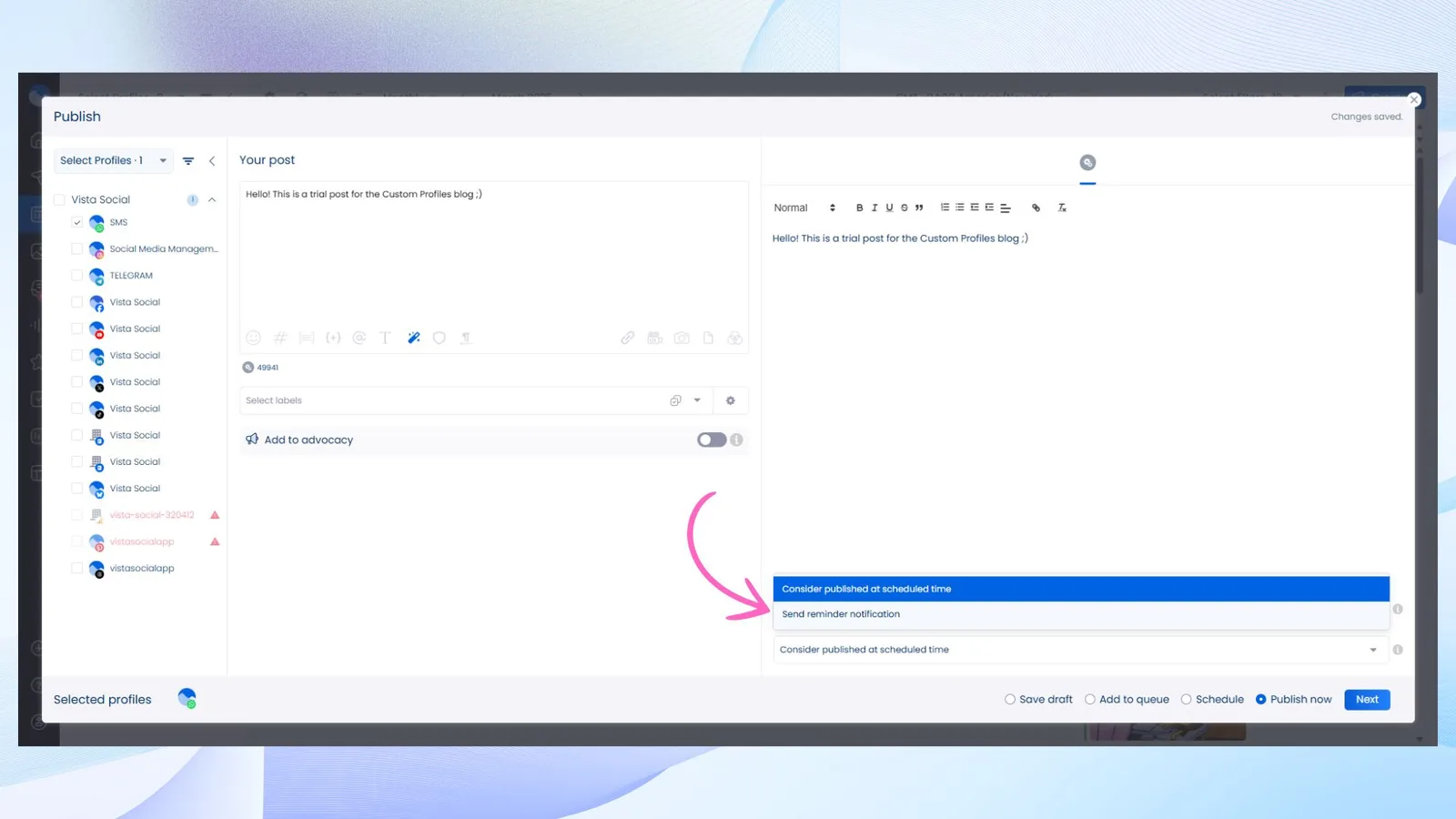
3. Select Send reminder notification and assign a team member to receive the reminder.
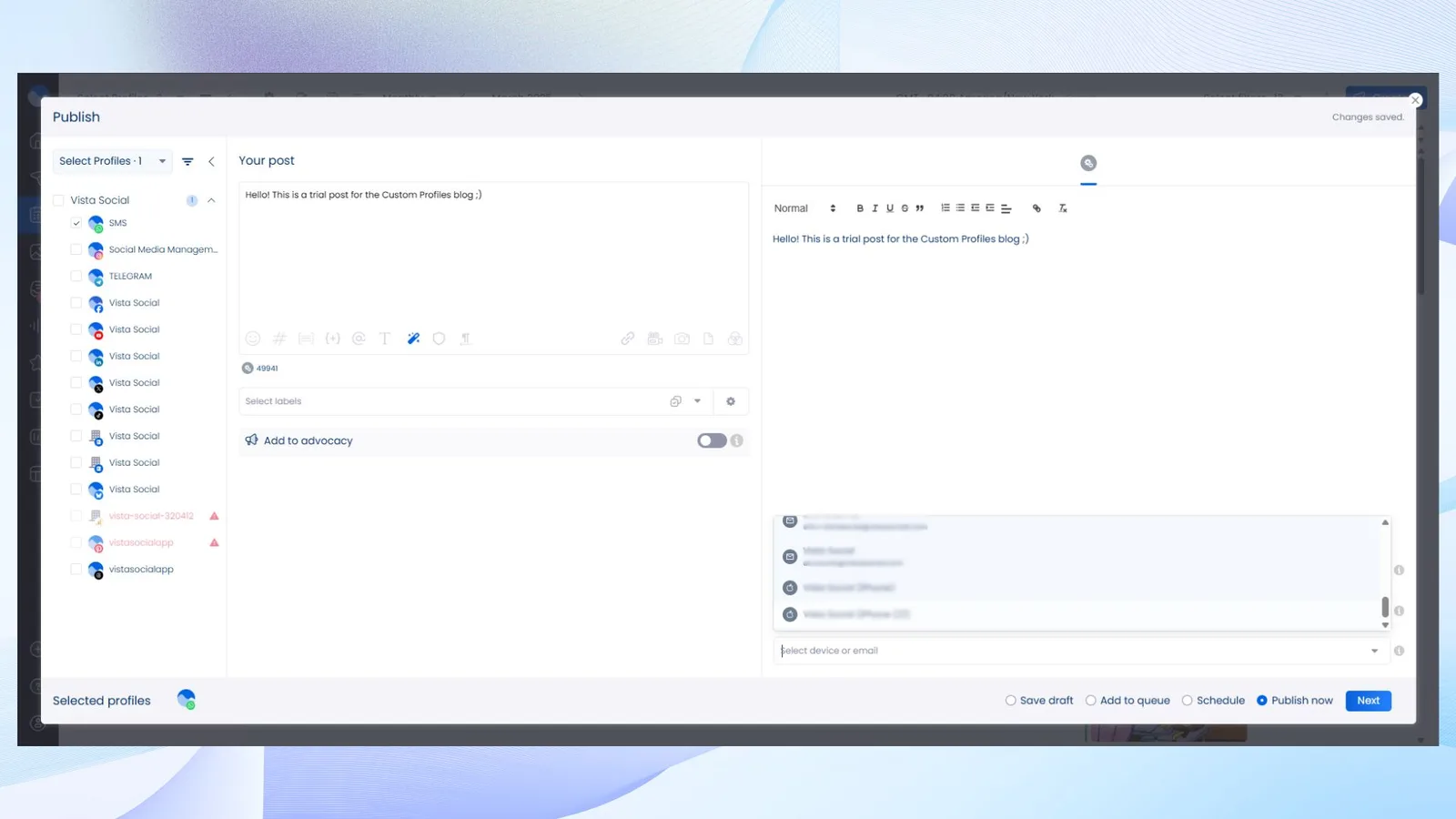
4. Select Schedule and click Next
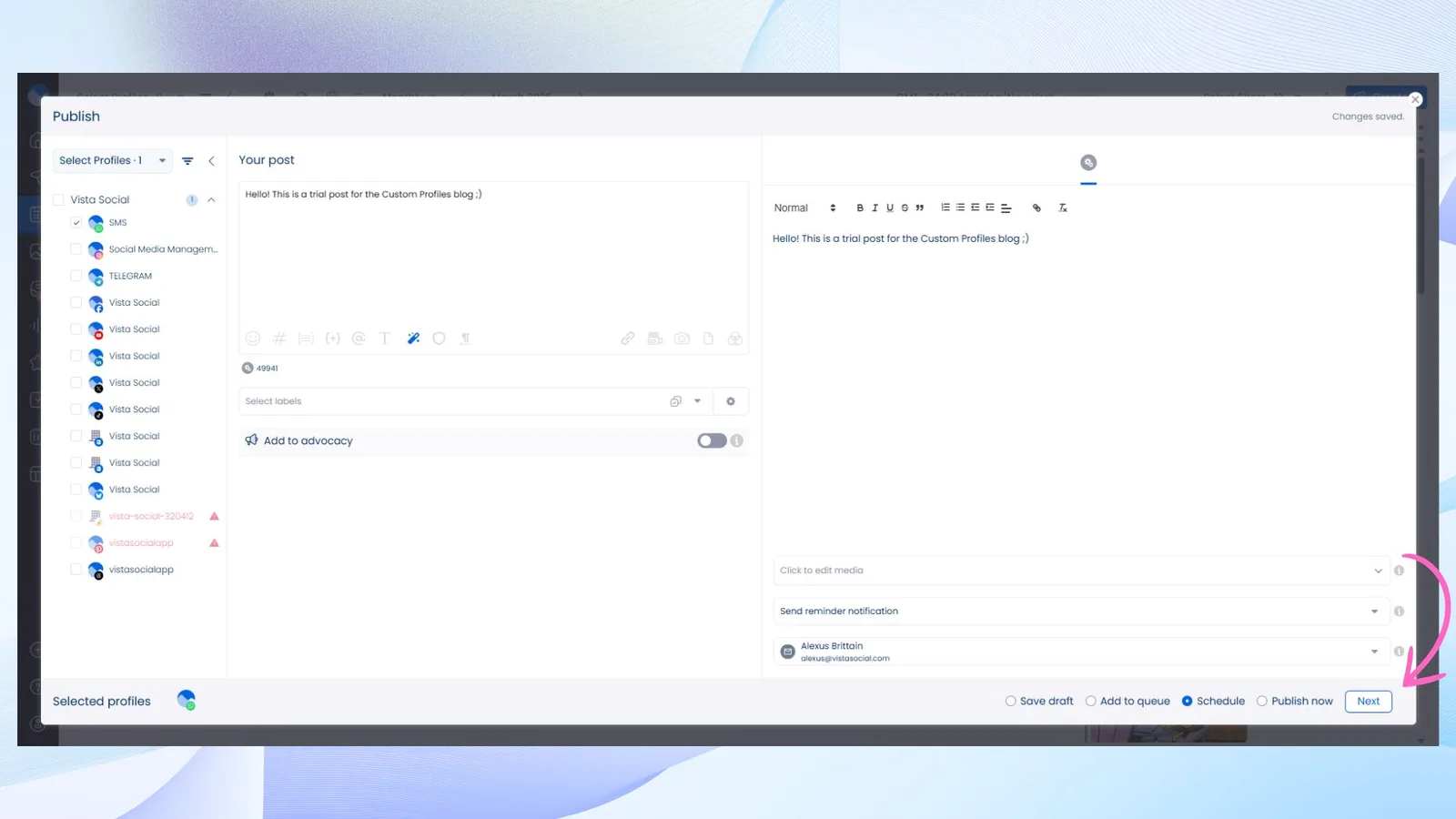
5. Now simply select the time of publishing as you would for a social post and click Schedule when done.
Note: Users need to have confirmed emails and enabled reminders in their settings to receive notifications. If someone isn’t getting reminders, they may need to re-enable them.
At the scheduled time, the assigned team member will receive a notification reminding them to publish the post.
Explore Your New Marketing HQ Today
Marketing is messy. You’ve got social, content, ads, email, and who knows what else fighting for attention. Keeping everything aligned shouldn’t feel like a full-time job on its own.
With Vista Social’s upgraded calendar, you now have one place to plan, track, and organize all your marketing efforts. No more hunting through Slack for that email launch date. No more last-minute scrambles when an ad campaign goes live. Just a clear, structured calendar that helps you stay ahead.
The lines between social and the rest of marketing are blurring. It’s time your calendar reflected that.
Ready to see the new calendar in action? Try Custom Profiles today and turn your Vista Social calendar into the marketing HQ you always needed.
Try Vista Social for free
A social media management platform that actually helps you grow with easy-to-use content planning, scheduling, engagement and analytics tools.
Get Started NowAbout the Author

Marketing @ Vista Social
Loading related tools...



Tools
PublishingAnalyticsEngagementIntegrations
FacebookInstagramLinkedInRedditSnapchatThreadsTikTokX (Twitter)YouTubeBlueskyVista Page (link-in-bio)All IntegrationsCopyright © 2026 Vista Social LLC. All Rights Reserved.