

Published on May 9, 2024
2 min to read
The Ultimate Guide to Boosting Social Posts

Summarize with AI

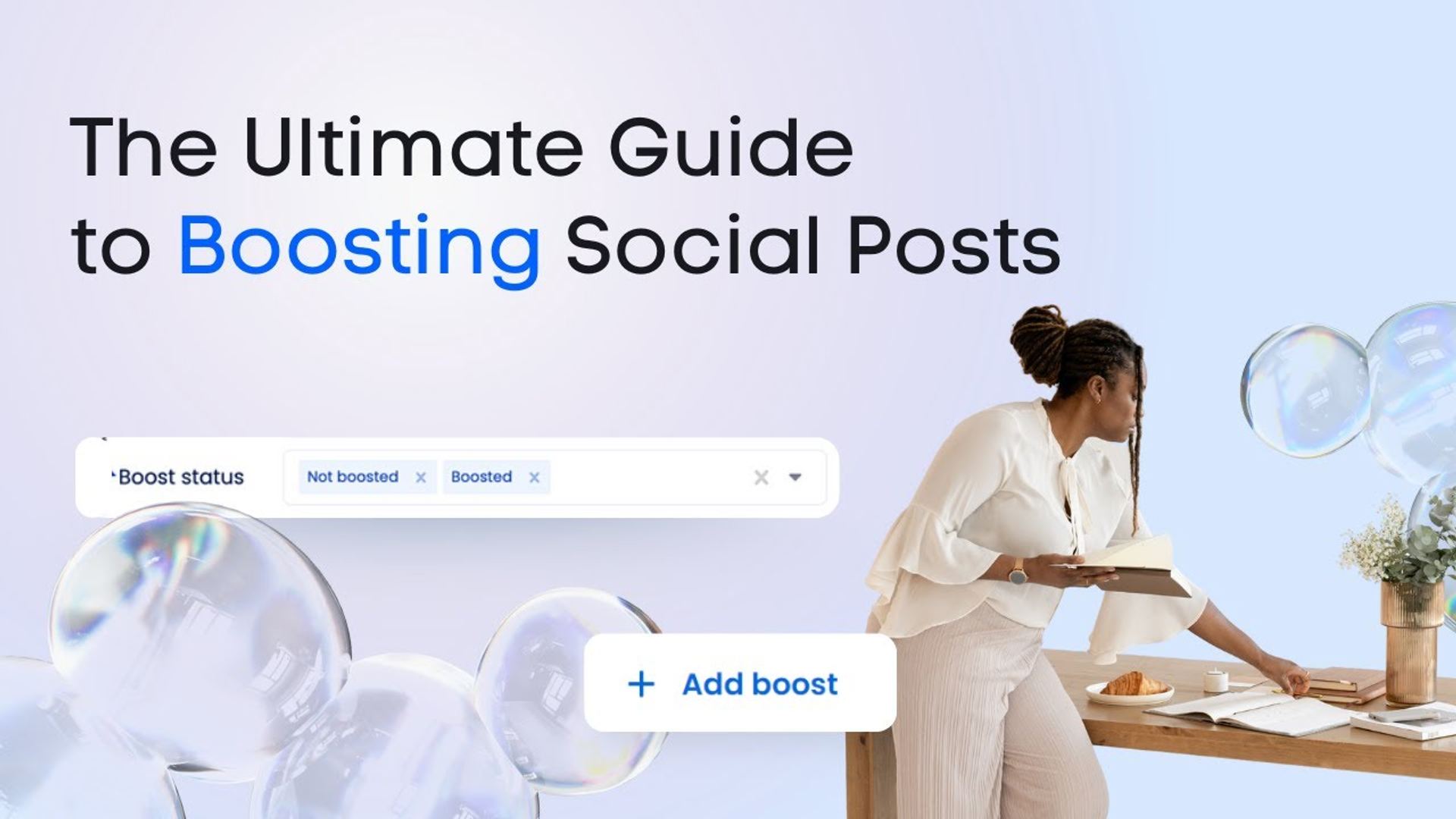
Table of contents
Summarize with AI

ChatGPT

Claude

Perplexity
Share

Vista Social

X (Twitter)


Transcript
Table of contents
Budget, Timing, and Campaign Duration
First up, let’s set up our Boost configurations. Simply head over to settings and customize your Boost strategies. So, I’m going to name this configuration “Coffee – Instagram” and select which profile this boost configuration is for. I’ll then select the ad account I want to use and also indicate my campaign budget. I can even set up a delay so that the organic post has a few hours to make its splash before the Boost kicks in, and finally, I’ll decide how long I want this campaign to last.
From Selection to Calendar Tracking
So, in scheduling your social post, you’ll have the option to select a boost configuration. However, keep in mind that you might have to scroll down a little bit more if you have longer captions or if your network has a lot of settings in their customization area. You can then choose a boost setting for each of the social profiles that you’re scheduling for in this post. And we’re done!
Let’s publish this post and see what it will look like once it goes out. So, on the calendar, boosted posts will have a rocket icon and a note once you hover over them. You can also use the calendar filters to find posts that are either boosted or not.
Try Vista Social for free
A social media management platform that actually helps you grow with easy-to-use content planning, scheduling, engagement and analytics tools.
Get Started NowAbout the Author

Content Writer
Loading related tools...



Tools
PublishingAnalyticsEngagementIntegrations
FacebookInstagramLinkedInRedditSnapchatThreadsTikTokX (Twitter)YouTubeBlueskyVista Page (link-in-bio)All IntegrationsCopyright © 2026 Vista Social LLC. All Rights Reserved.