

Published on December 24, 2024
8 min to read
Facebook Draft Post: How to Save, Edit, And Manage [2025]

Summarize with AI

![Facebook Draft Post: How to Save, Edit, And Manage [2025]](/static/de44bd66d02725ee8d73ee80846d84b4/40476/Facebook-draft-post.jpg "Facebook Draft Post: How to Save, Edit, And Manage [2025]")
Table of contents
Summarize with AI

ChatGPT

Claude

Perplexity
Share

Vista Social

X (Twitter)


Check that everything is on point before posting by creating a Facebook draft post.
Saving drafts allows you to review and refine your clients’ Facebook content before hitting that Post button.
With this, you can set up a smooth post-approval process between your social media marketing team and clients.
Creating Facebook drafts also lets you line up variations of the same post for easy comparison, making your content planning a breeze.
So, we all know creating Facebook draft posts is crucial, but how do you save, edit, and manage everything?
This guide has the answers, so keep reading to find out.
Table of contents
What you will learn
- What are the benefits of a Facebook draft post?
- How to save a Facebook draft post using a desktop
- How to edit a Facebook draft post using a desktop
- How to edit a Facebook draft post using a smartphone
- How to use Vista Social to save edit and manage your Facebook draft post
- Facebook marketing insights and hacks from social media leaders and experts
- FAQs on Facebook draft post
What are the benefits of a Facebook draft post?
Creating Facebook drafts can offer several advantages for your team and clients, including the following.
Easy post editing and refining
Facebook drafts allow you to save and edit your posts before they go live.
This way, you can easily adjust, edit, add, and remove anything, ensuring well-polished posts.
For instance, you can add necessary images or links or perfect your draft’s wording.
Seamless team collaboration
Creating drafts can facilitate an efficient approval process among your team members and clients.
Your team and clients can review, suggest, apply edits, and approve posts before they are published to ensure consistency and quality.
Efficient content planning
Making drafts, whether image posts or surveys and polls, helps your team organize and plan your content strategy since you can draft multiple posts ahead.
Must read: How to Create a Poll on Facebook: A Complete Guide [2024]
You can also create and compare variations of the posts before scheduling and publishing for specific dates, which helps you maintain a regular posting schedule.
Error detection and prevention
Creating drafts first helps reduce the risk of posting incomplete or error-filled content on your clients’ Facebook feeds.
With drafts, you can check thoroughly for missing elements, typos, or incorrect details before posting.
Allows for flexibility
Drafts simplify tweaking or adapting your posts based on new information or real-time client feedback.
You can easily update drafts and change the format to incorporate any changes to your content strategy, keeping your clients’ posts timely, relevant, and accurate.
Must read: Facebook Post Formatting: Ultimate Guide
Efficient content production
Drafting your clients’ Facebook posts in advance allows you to batch your content creation tasks.
It gives you more time to spend on crucial tasks such as engagement and strategy development while making your content creation process more efficient.
Backup content
Drafts can serve as your safety net in case of unforeseen issues.
You’ll have a bank of ready-to-go content that you can easily pull from in case of last-minute changes so your clients don’t miss out on any opportunities to engage audiences or delay their campaigns.
Boosts creativity
Creating drafts can encourage your team members to harness their creative juices while facilitating thoughtful content creation.
Without the pressure of immediate posting, your team can experiment with various Facebook post formats, styles, and ideas.
It allows your team to be more innovative and create more engaging content for your clients.
How to save a Facebook draft post using a desktop
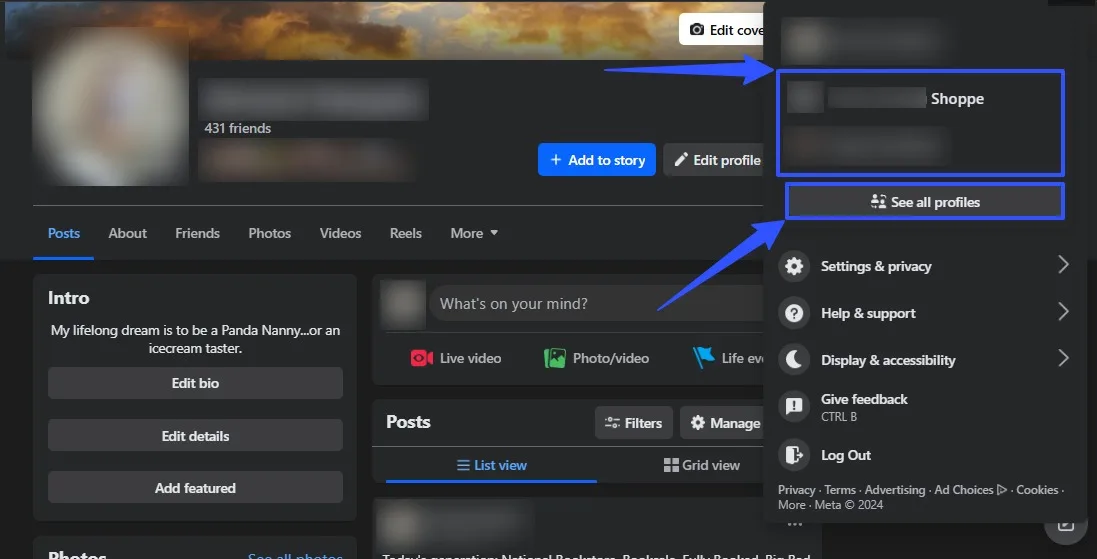
Log into your client’s Facebook Page account and select the profile photo in the upper right-hand corner.
Must read: How to Unlink Facebook And Instagram: Easy Steps [2024]
Then, select the page you wish to switch to. You may need to click See all profiles to find the page.
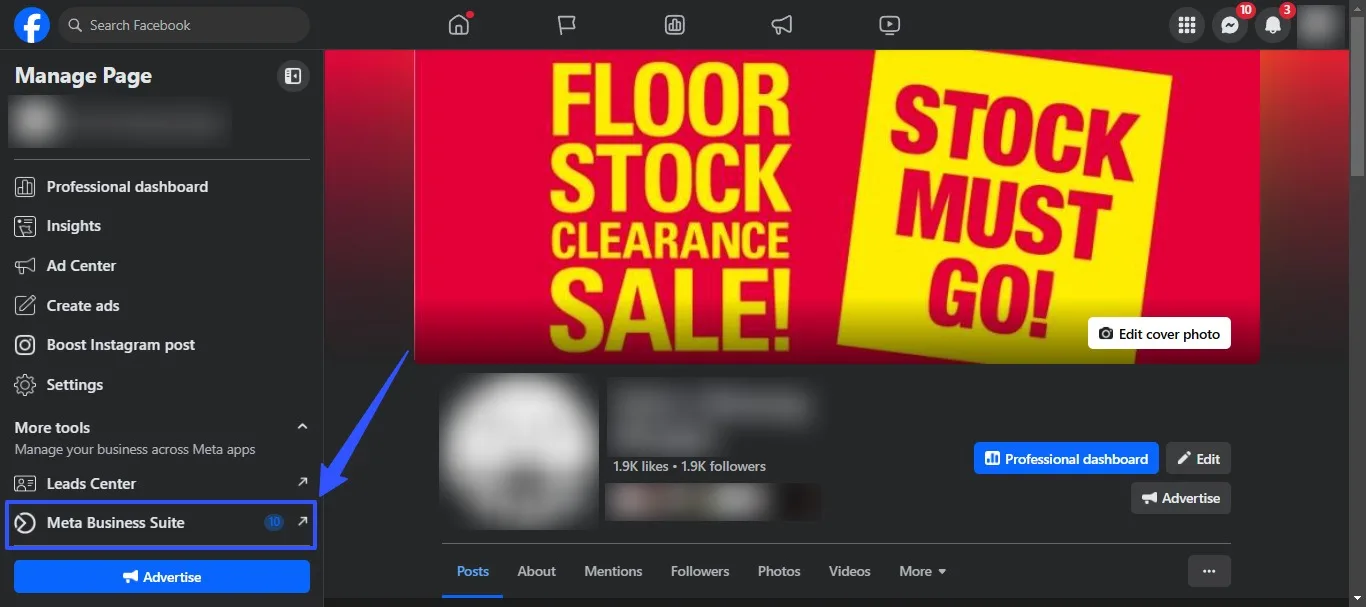
Click Meta Business Suite on the left-hand side menu on your client’s page.
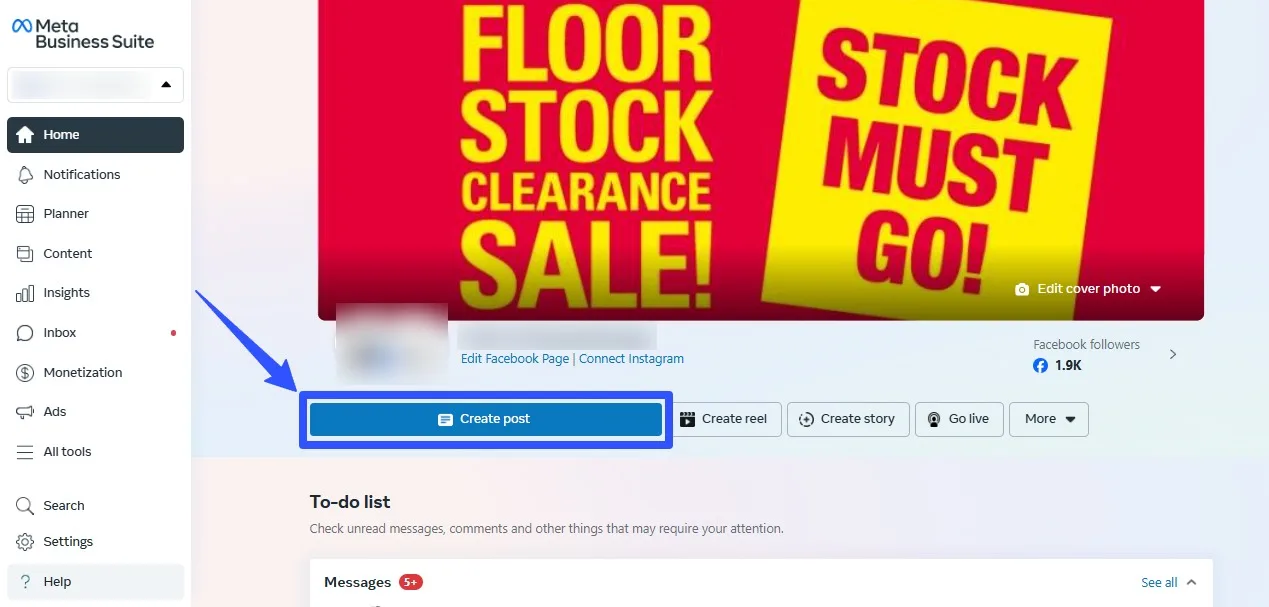
Select Create post on the Meta Business Suite page.
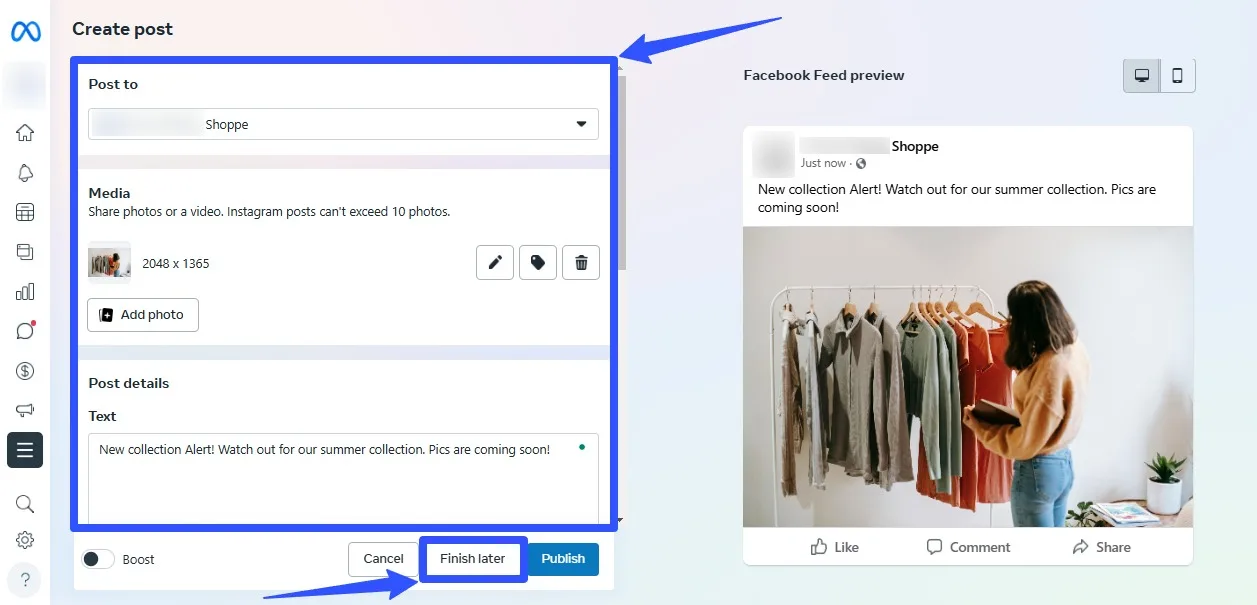
Create the post by adding the image, video, caption, link, etc.
Must read: UNIQUE Facebook Captions: For Posts & Profile this 2024
Next, click Finish later to save your post as a draft.
How to save a Facebook draft post using a smartphone
Creating a Facebook draft post with your mobile device is pretty straightforward.
After logging into your client’s Facebook account, tap the What’s on your mind section (on the home page or your client’s account page) to create a new post.
Create your post accordingly and tap your phone’s back or exit button.
A prompt at the bottom will ask if you want to finish your post later.
Tap Save as draft.
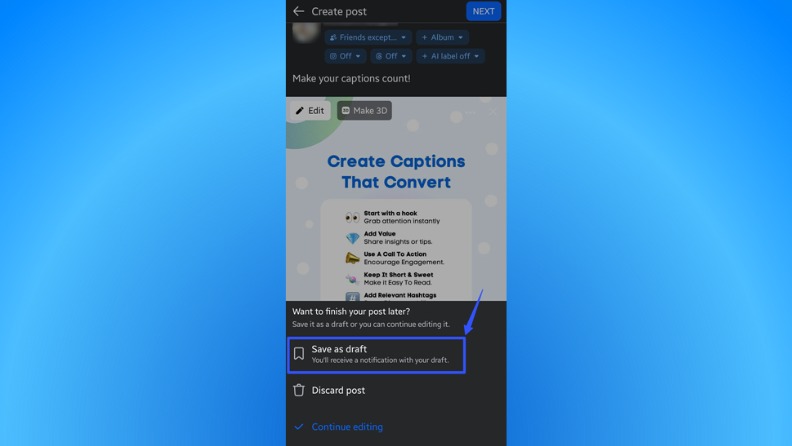
You should get a phone notification telling you your draft was saved.
How to edit a Facebook draft post using a desktop
To edit or publish your drafted post, go back to the Facebook page you used when you saved your draft.
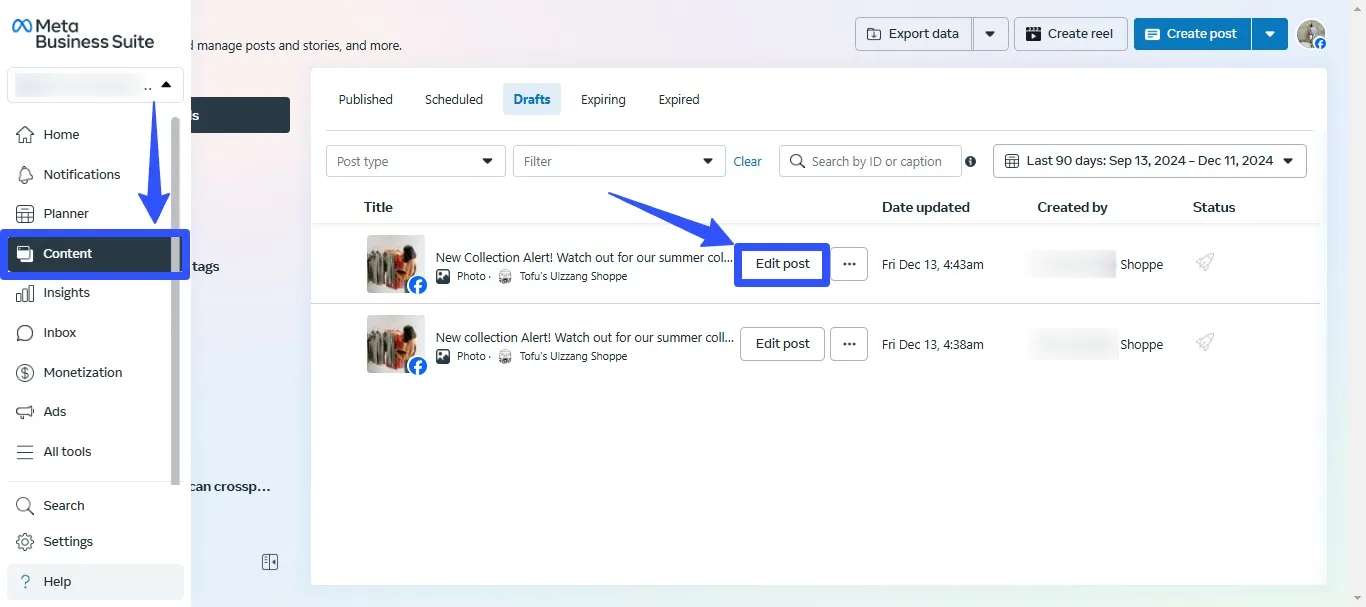
Select Meta Business Suite and click Content on the left side menu.
Then, look for the draft and click Edit post.
Edit the post how you want and set your preferred options, such as setting the time and date for auto-posting and enabling the option to add the post to your client’s Facebook Story automatically.
Click Publish when you’re done.
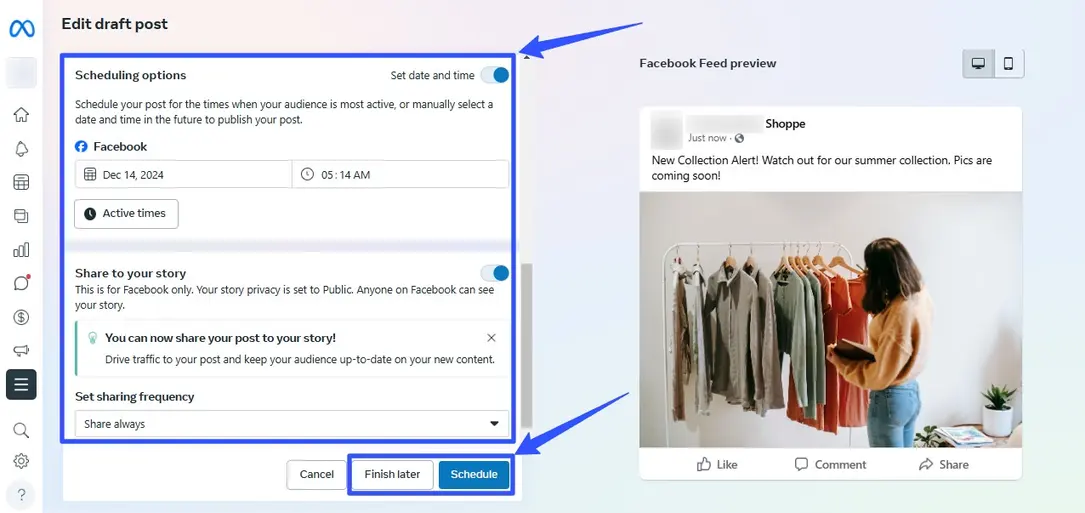
If you need to refine the post or keep it as a draft, click Finish later.
You can always go back to the Content section of the page’s Meta Business Suite to edit and manage your clients’ saved Facebook drafts.
Must read: How to Get Clients on Facebook (A Guide for Agencies)
How to edit a Facebook draft post using a smartphone
If you haven’t closed the notification that shows your draft has been saved, you can tap on it to access your drafted post.
You should see your drafted Facebook posts on the Your posts page.
Note: Facebook automatically discards drafts after three days.
You can tap on the draft or three dots and select Open draft.
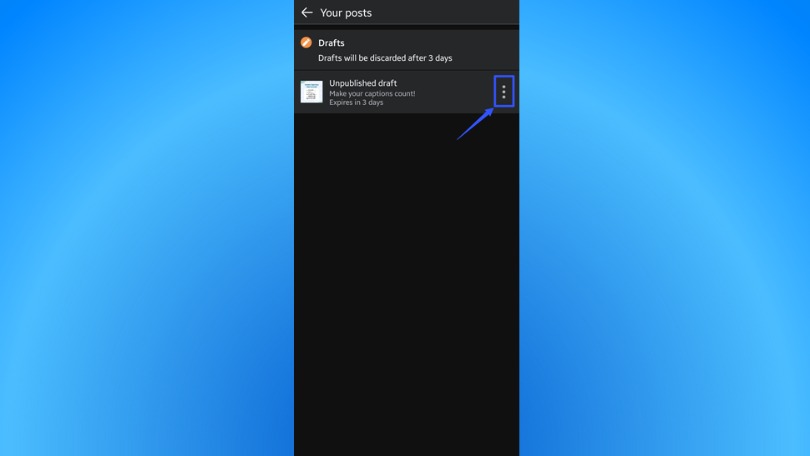
You can edit your post accordingly and tap Next to publish it to your client’s Facebook page or feed.
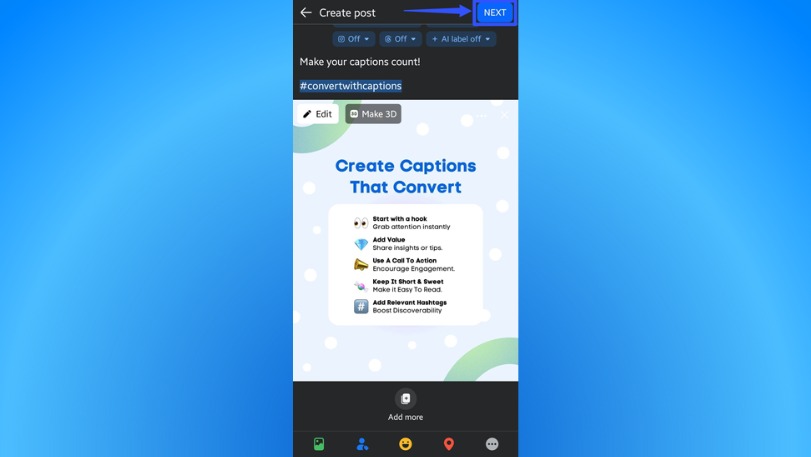
If you closed the Facebook draft notification, simply create a new post, save it as a draft, and tap the new notification.
You’ll be taken to your list of drafts and can edit or publish your drafted posts from there.
How to use Vista Social to save edit and manage your Facebook draft post
The easiest and quickest way to manage Facebook draft posts for your clients’ content is to use Vista Social.
The social media management platform simplifies creating, saving, and editing your Facebook draft posts with intuitive tools.
Create a new post from your Vista Social Create menu.
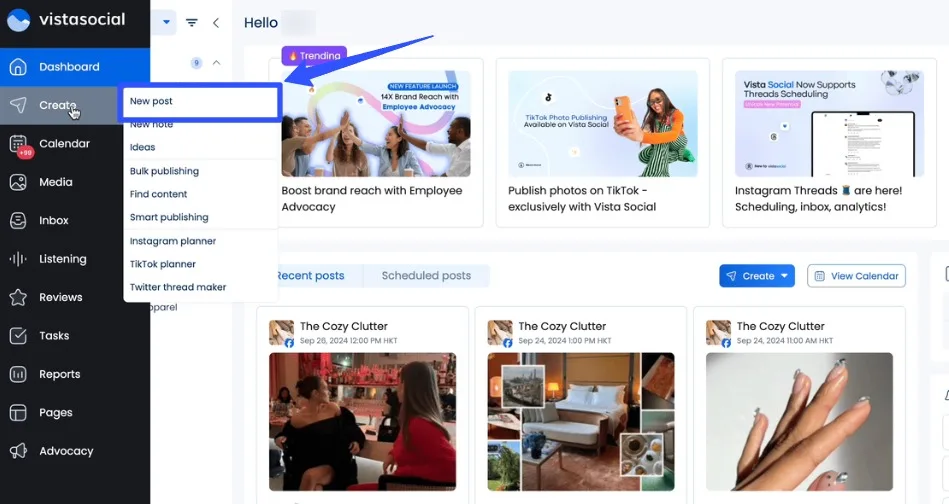
Select the profile (or profiles) for your intended post or draft post on the social media publishing page.
Upload your image or video and add captions, links, hashtags, emojis, and more to create your post.
Use the AI Assistant to get instant post caption suggestions and taglines, speeding up your content or draft creation process.
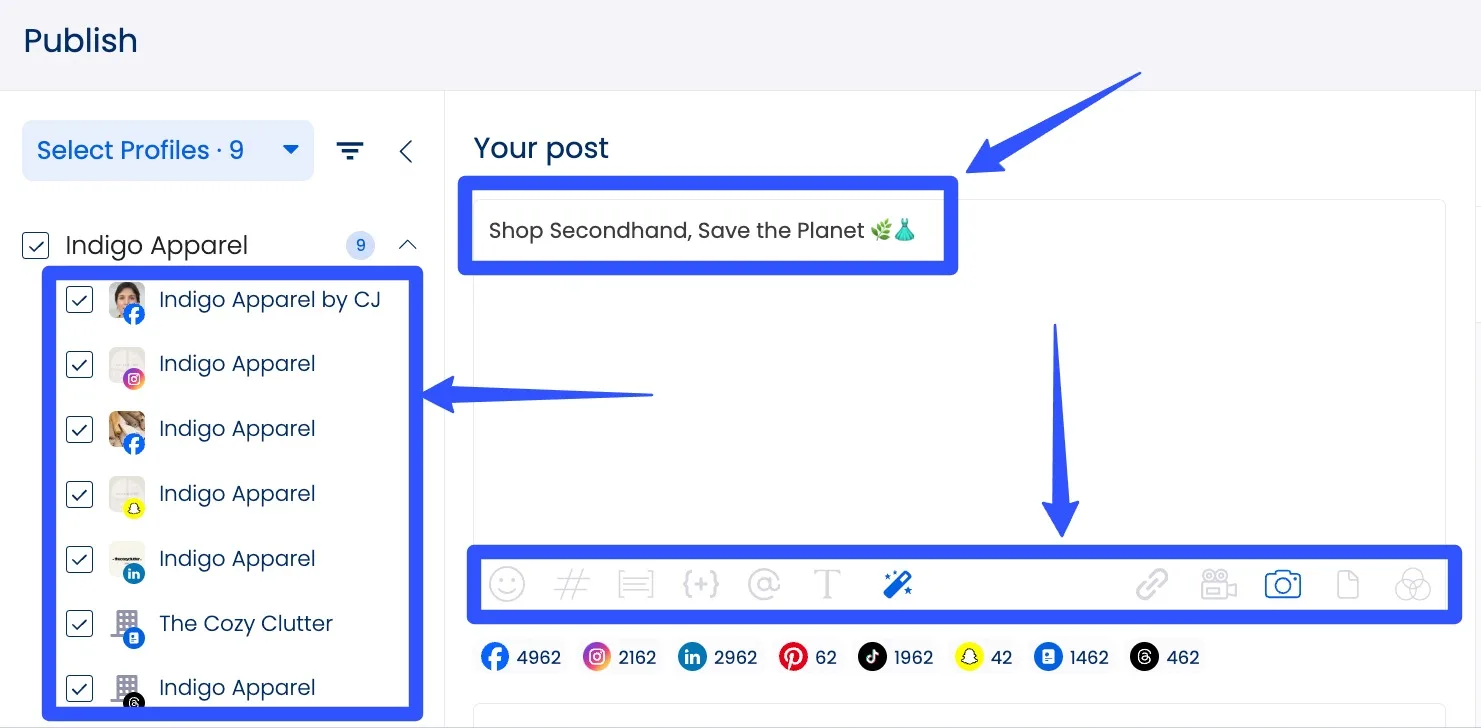
You can customize your post further by enabling post comments, setting mobile notifications, and specifying audience targeting options.
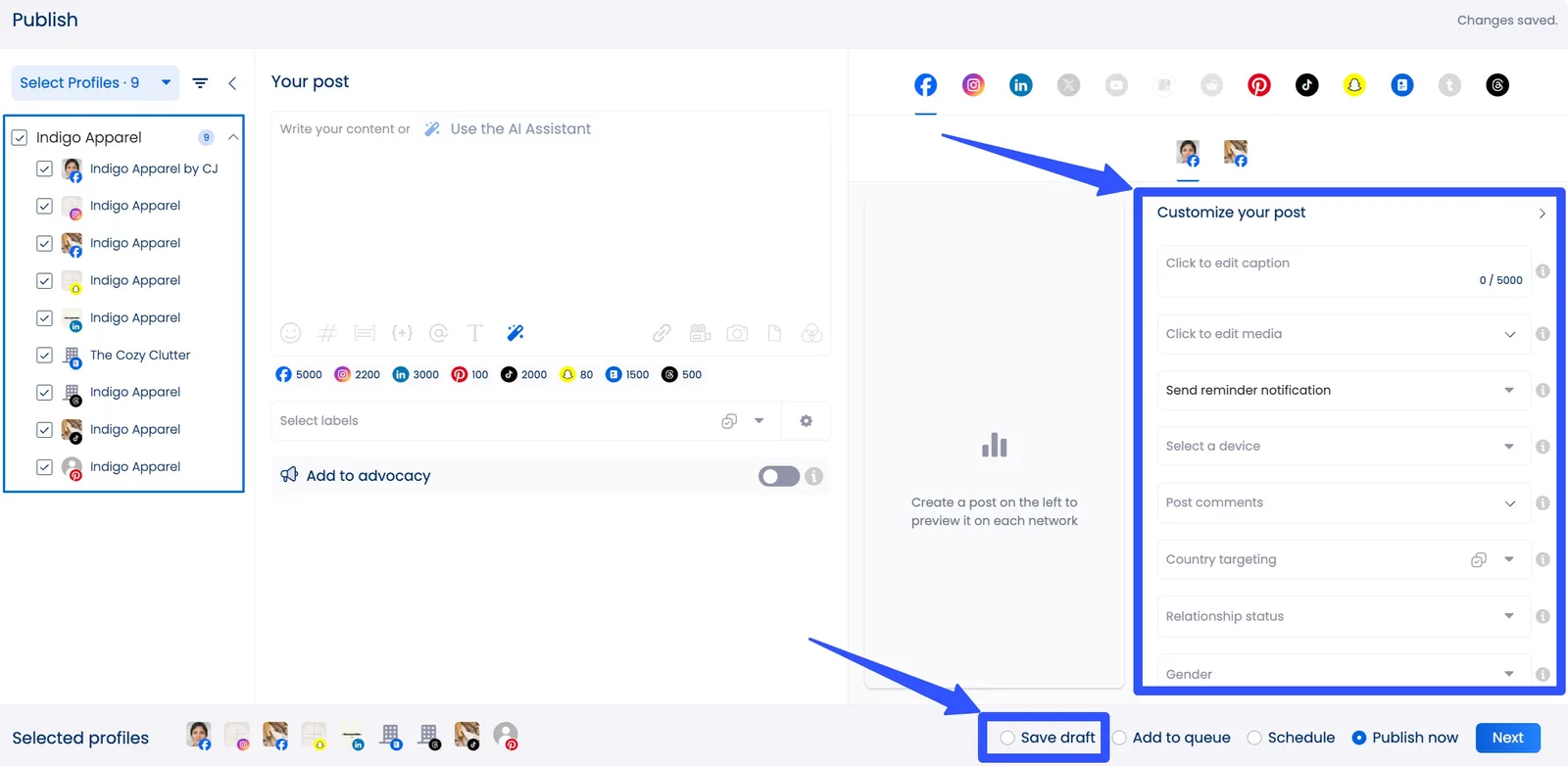
Click Save draft when you’re done.
Side note: You can boost your clients’ Facebook posts right from Vista Social.
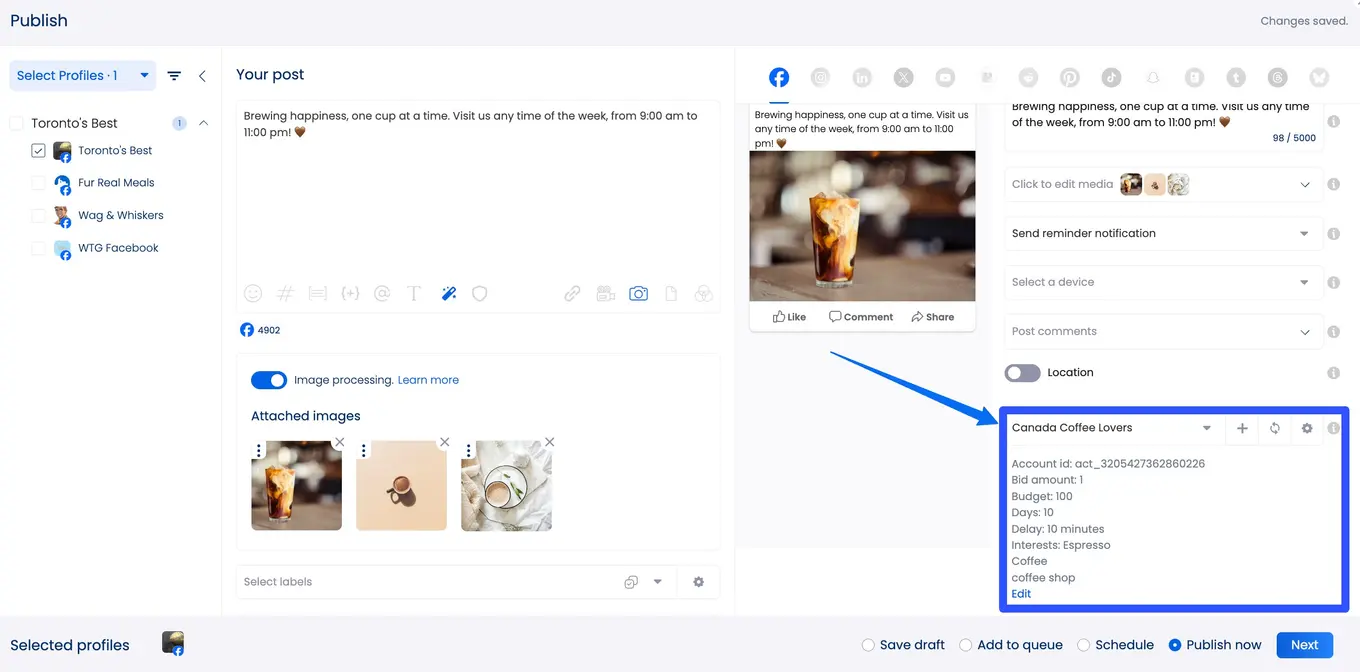
You’ll need to set up a boost configuration and enable it when creating or scheduling your clients’ posts.
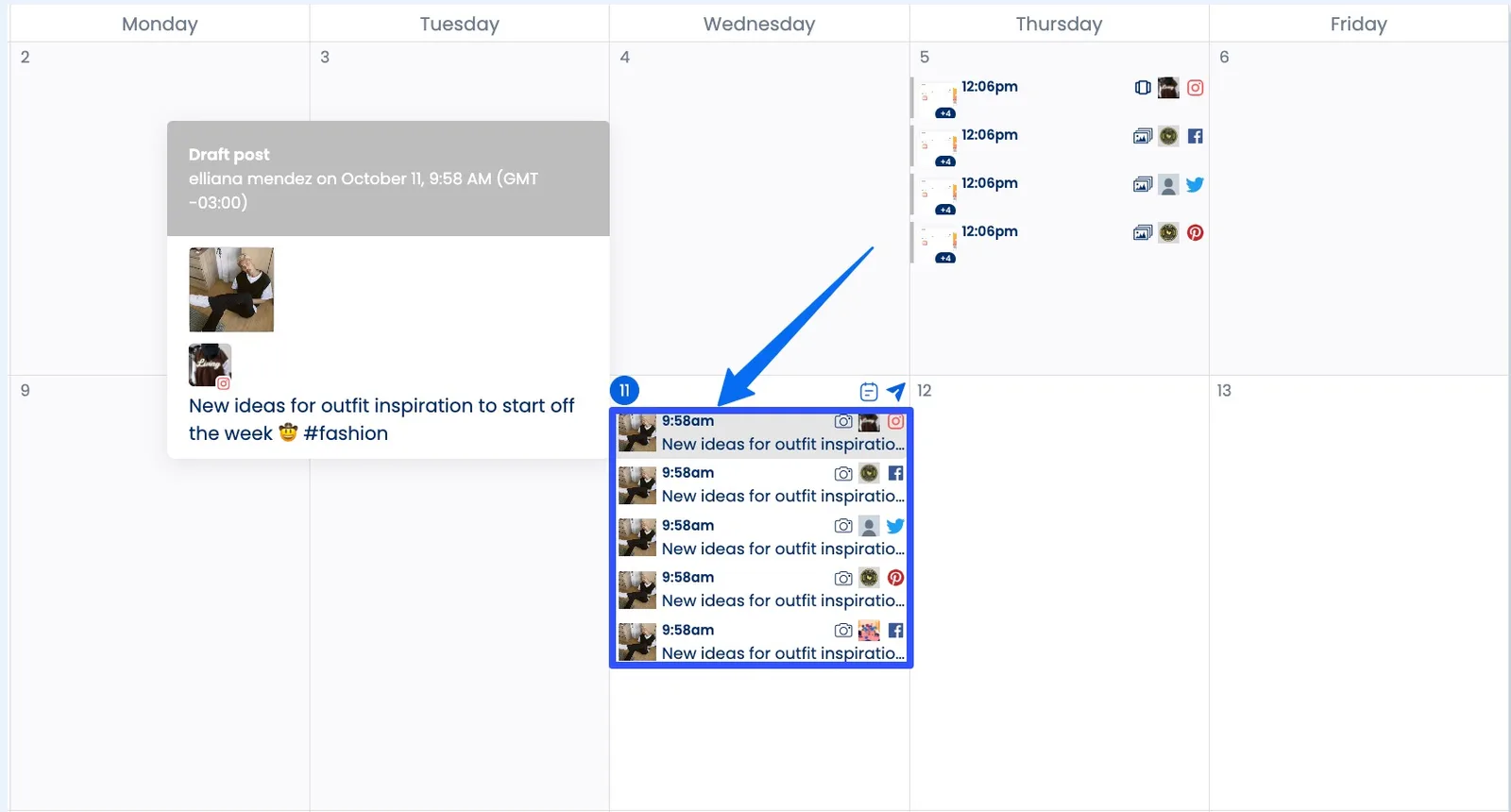
With Vista Social’s centralized content calendar, managing your clients’ Facebook and other social media post drafts on Instagram, TikTok, etc., is a breeze.
Must read: TikTok Drafts: How to Edit, Post, Save, and Delete Drafts
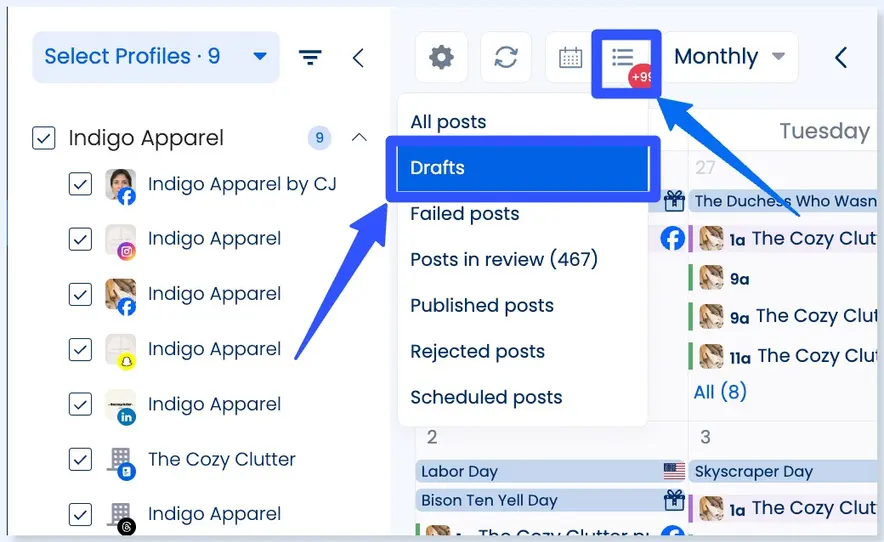
Click the post management icon on your calendar and select Drafts.
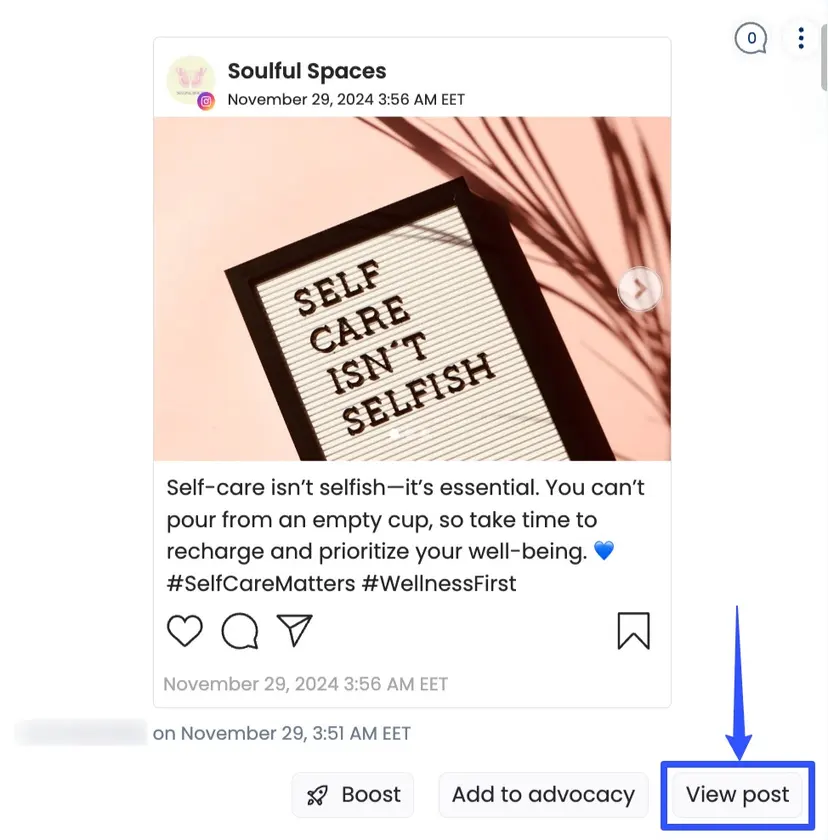
Find and select the draft you wish to edit by clicking View post.
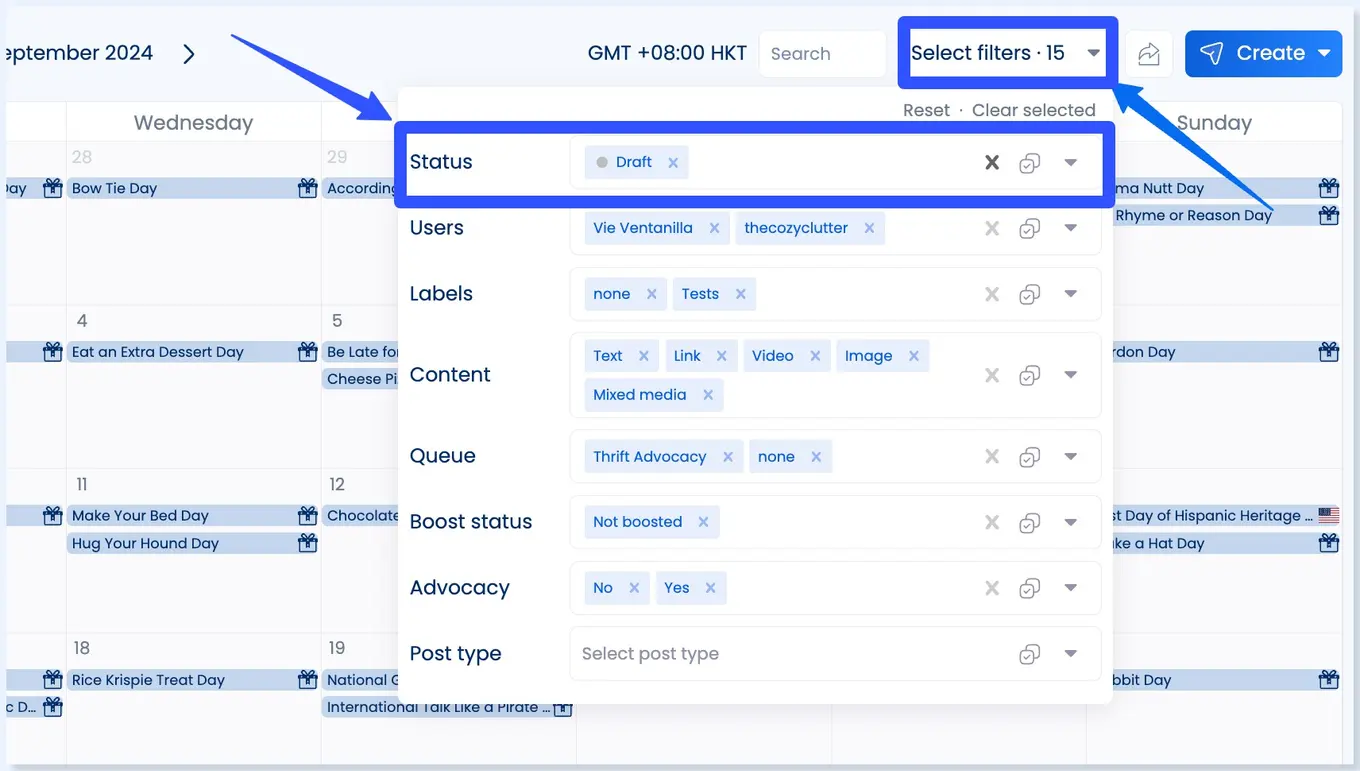
You can also quickly find drafts from your content calendar using the filtering options.
For instance, you can set the Status field to Draft to show all your draft posts and specify other details such as the labels and post type.
Select the post in the calendar to edit it.
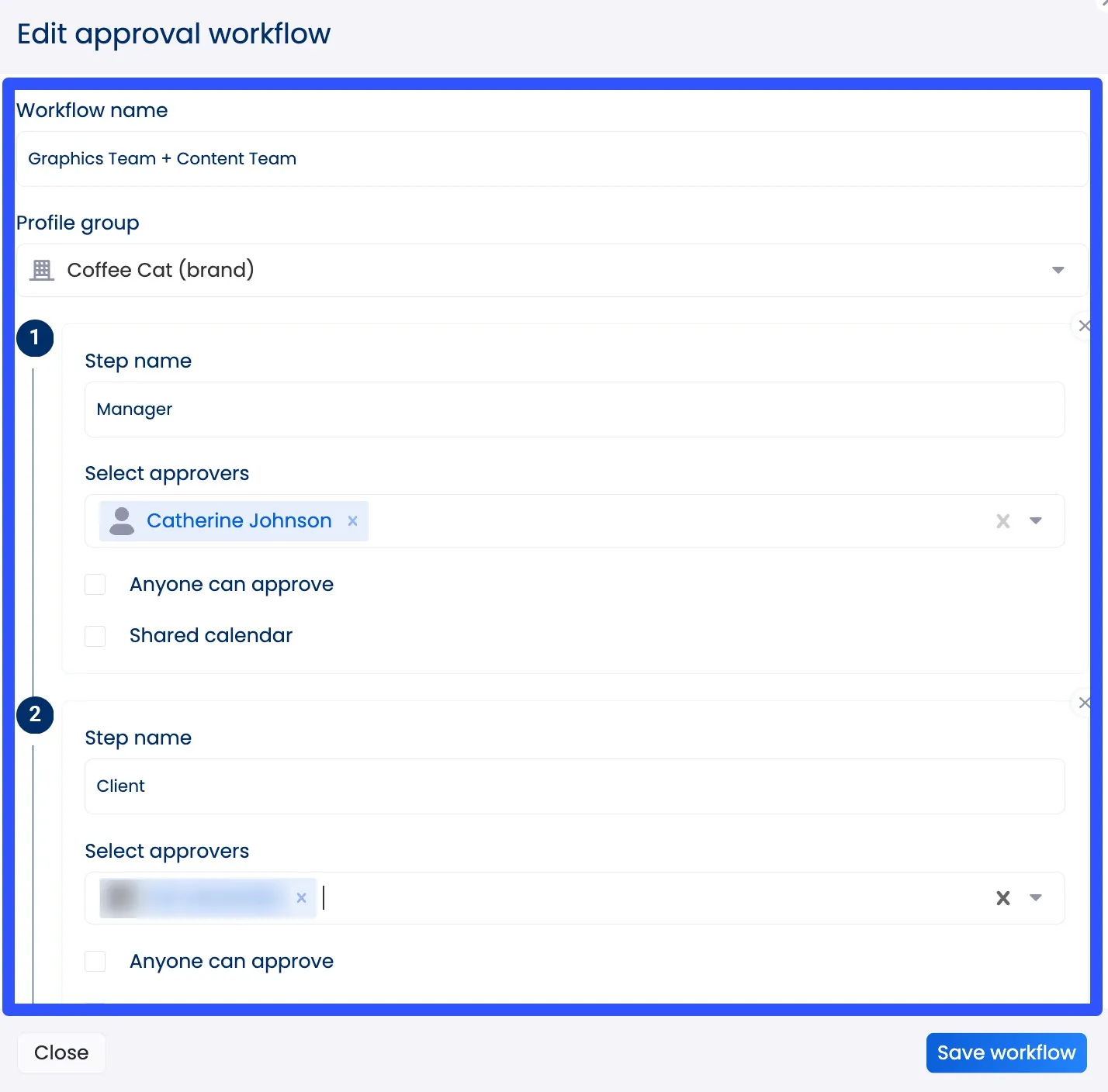
You can create automated single- or multi-stage approval workflows to streamline the review and approval of your scheduled and drafted posts.
Team members and clients who will approve your posts can leave comments on your saved drafts, making it easy to incorporate suggestions and feedback before the post goes live.
Additionally, you can enable the Draft created notification via email, browser, and Slack to alert team members when new draft posts are created.
Plus, you can access archived deleted posts if you want to recover them, save them as drafts, or edit and schedule them.
Must read: 10 Facebook Analytics Tools Used by Top Marketing Agencies
Vista Social offers other awesome features, including the following:
- Social media analytics and reporting with custom reporting templates and easy report-sharing options, including sharing via links
- Media library
- An employee advocacy feature
- A mobile app version for efficient social media management on the go
- A social media listening tool
- Hashtag generator
- Link in bio tool called Vista Page that includes customizable and unlimited landing pages
- Optimal posting time suggestions
- Review management tools
- A creative hub called Ideas facilitates brainstorming and collaborating on your clients’ social media post concepts. The feature now allows you to favorite ideas, which helps streamline workflow for teams that use Ideas as a content library
- Social media engagement feature with a unified Social Inbox for centralized and efficient engagement management. The Inbox now allows you to respond directly to Instagram DMs and comments from the platform
Must read: Instagram Drafts: How to Save/Find/Delete Drafts on IG
FAQs on Facebook draft post
Check out the commonly asked questions about Facebook draft posts below.
Why can’t I find my drafts?
If you can’t find your drafts, Facebook may have deleted them automatically after three days.
Glitches or app bugs can also cause your Facebook draft posts to disappear.
Check whether you have the latest version of the Facebook app.
You can also try restarting the app or your phone and deleting the cache.
Can you save multiple post drafts on Facebook?
Yes, you can save multiple Facebook drafts.
All your saved drafts will appear in the drafts section as long as it’s within three days.
The best way to ensure you keep your drafts is to use social media management platforms like Vista Social, where you can save them until you publish or delete them.
Will my drafts be saved after logging out of Facebook?
Yes, your drafts are saved even when you log out of your clients’ Facebook accounts.
Your safest bet is to save drafts to your social media management tool or backup copies of your posts.
Can I edit drafts multiple times?
Yes, you can edit your drafts as many times as you want on Meta Business Suite (for Facebook page drafts).
Are Facebook drafts public?
No, drafts you save on Facebook are not public.
Only posts you publish as Public will be seen by all users (non-followers and friends).
Must read: How to Get Followers on Facebook in 2024: Proven & Easy Ways
Can I create drafts for multiple Facebook pages?
Yes, you can create and save drafts for each client’s Facebook page you manage.
Manage your Facebook draft post like a boss
Creating, refining, and managing your Facebook draft posts for clients can be as easy as pie.
Learn from the steps and tips in this guide to handle drafts easily and ensure seamless workflows across your teams and clients.
Leverage Vista Social to manage your Facebook and other social media drafts without a hitch.
The platform has everything you need to plan, create, draft, and schedule your posts efficiently, including modern social media management tools that can supercharge your key tasks.
Try Vista Social for free
A social media management platform that actually helps you grow with easy-to-use content planning, scheduling, engagement and analytics tools.
Get Started NowAbout the Author

Content Writer
Jimmy Rodela is a social media and content marketing consultant with over 9 years of experience, with work appearing on sites such as Business.com, Yahoo, SEMRush, and SearchEnginePeople. He specializes in social media, content marketing, SaaS, small business strategy, marketing automation, and content development.
Loading related tools...



Tools
PublishingAnalyticsEngagementIntegrations
FacebookInstagramLinkedInRedditSnapchatThreadsTikTokX (Twitter)YouTubeBlueskyVista Page (link-in-bio)All IntegrationsCopyright © 2026 Vista Social LLC. All Rights Reserved.