

Published on September 25, 2025
12 min to read
Canva Content Planner: How to Streamline Client Campaigns

Summarize with AI

Table of contents
Summarize with AI

ChatGPT

Claude

Perplexity
Share

Vista Social

X (Twitter)


Juggling multiple client campaigns can feel like a never-ending game of catch-up.
Deadlines, designs, approvals—it piles up fast. If you’re not organized, things slip through the cracks. That’s where the Canva content planner comes in.
It’s simple, visual, and makes scheduling posts way less stressful. But here’s the thing—it’s not enough on its own if you’re managing serious client work.
The real magic happens when you use Canva for design and pair it with a powerhouse like Vista Social for publishing, analytics, and engagement. That’s how you keep campaigns on track and clients happy.
In this guide, I’ll show you how to get the most out of the Canva content planner and when to lean on Vista Social to handle the heavy lifting.
Table of contents
What is the Canva content planner?
The Canva content planner is a scheduling tool built right into Canva. It lets you plan, design, and schedule posts directly to your social media channels without leaving the platform.
This means you can go from idea to design to publication in one place. No more downloading graphics, juggling multiple tabs, or uploading content manually.
The content planner is designed for visual-first workflows. Canva keeps the process smooth for marketers, freelancers, and small businesses who prioritize branded visuals and design consistency.
You can create graphics in Canva and publish them right away using the planner. That speed makes it attractive to small teams, solo entrepreneurs, and content creators who want simplicity.
The planner shows content in a calendar view, which helps you visualize campaigns. You can see what’s scheduled, spot gaps in your posting rhythm, and make changes with ease using drag-and-drop functionality.
It also supports multiple platforms like Instagram, Facebook, LinkedIn, Pinterest, and TikTok. This flexibility enables the management of a diverse range of client needs and platforms in a single location.
Beyond scheduling, the planner lets you add captions, emojis, and hashtags directly. This makes your workflow smoother since you don’t have to prepare a copy separately. You can also preview posts before they go live, giving you the chance to catch mistakes and ensure everything looks polished before it hits your client’s feed.
The Canva content planner is particularly helpful for creating batches of content. You can design a week or a month’s worth of content in one sitting, schedule it, and free up time for strategy or engagement.
However, the planner does have its limitations. While it’s a great visual scheduling tool, it doesn’t offer approval workflows, deep analytics, or advanced campaign management.
It’s best seen as a simple, user-friendly way to bridge the gap between design and publishing—without replacing more robust social media management tools.
Why use the Canva content planner for client campaigns?
The Canva content planner simplifies visual content scheduling. Instead of exporting designs and uploading them elsewhere, you publish in one workflow. This helps you maintain consistency across campaigns.
You can align your graphics with planned posting dates without needing to juggle multiple tools. It also helps clients visualize timelines.
When they see their posts in a calendar view, it’s easier to approve campaigns. Still, you’ll need more than Canva by itself. While it’s great for content creation and light scheduling, it doesn’t cover analytics, engagement, or competitor tracking.
How the Canva content planner works
Understanding how the Canva content planner functions will help you maximize its value. The workflow is simple:
- Create your design in Canva.
- Click Share and choose Schedule.
- Pick the social media platform and connected account.
- Select the date and time.
- Write your caption and hashtags.
- Publish or schedule.
You can manage posts in the calendar view. Drag-and-drop functionality makes rescheduling easy. This setup works well for quick content rollouts. However, when campaigns require coordination across multiple platforms and deeper insights, Vista Social is essential for your stack.
The social media management platform features a handy Canva integration, making planning, creating, and designing your content quick and easy.
Create a new post, then click the camera icon, select Canva, and choose your design option.
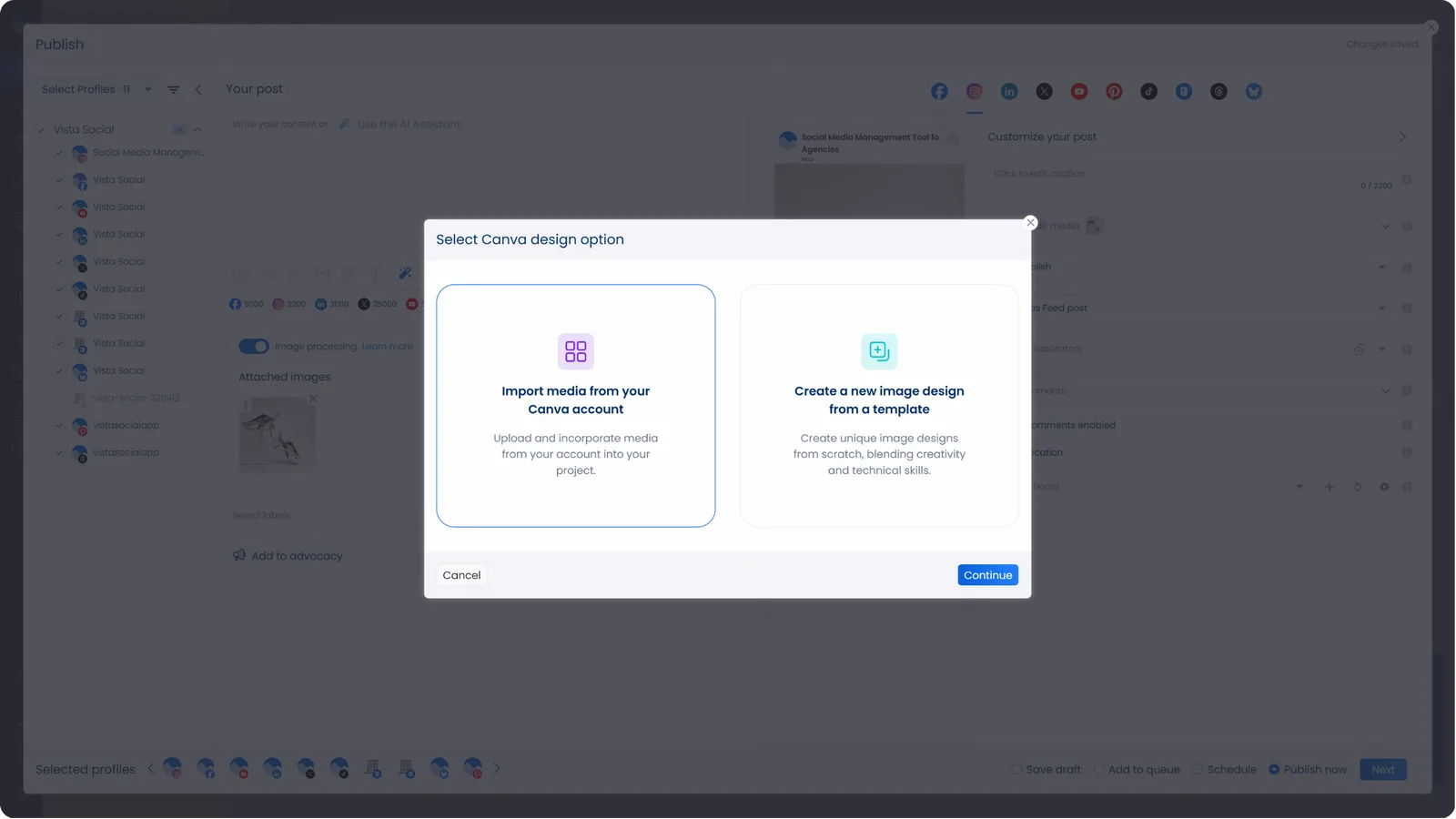
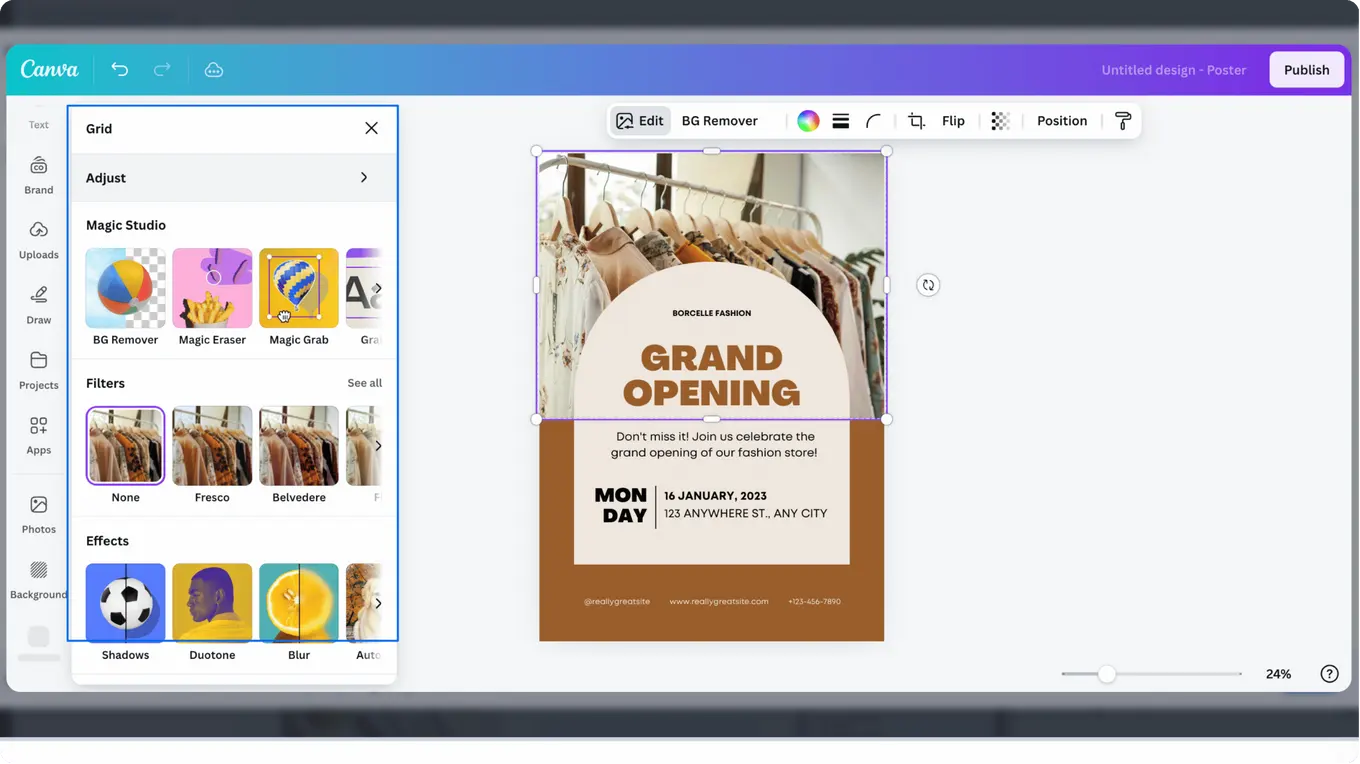
From the social media publishing feature, you can choose your Canva design category and click Design with Canva. You’ll be directed to the Canva interface (without leaving Vista Social), where you can edit and design your image accordingly.
Limitations of the Canva content planner
While Canva makes content creation simple, its content planner comes with noticeable limitations. It works well for basic scheduling, but it isn’t designed for managing complex campaigns.
Agencies and businesses that need detailed oversight often find themselves relying on additional tools to fill the gaps. Knowing where Canva falls short helps you use it wisely without building your entire strategy around it.
That way, you can avoid frustration and maintain efficient workflows.
1. Lack of advanced analytics
The Canva content planner doesn’t provide in-depth reporting. You won’t see engagement rates, follower growth, or competitor benchmarks. Without these metrics, it’s harder to prove the ROI of your campaigns or optimize for performance.
Teams often find themselves exporting data manually or using other tools to fill in the gaps. If you rely heavily on performance insights, this limitation can result in additional steps in your workflow.
2. No unified inbox
Managing comments, DMs, and mentions is impossible inside Canva. That means you’ll still need another tool to engage with audiences.
Without a central inbox, you risk missing important interactions that build community and trust. For brands handling multiple platforms, the lack of engagement management becomes a serious bottleneck.
It turns the planner into a one-way posting tool instead of a hub for conversation.
3. Limited social listening
Canva won’t alert you to trending topics, keywords, or brand mentions. That means you miss out on opportunities to engage with real-time conversations that could boost visibility.
Social listening is crucial for identifying industry shifts, competitor movements, and emerging viral trends.
Without it, your campaigns can feel disconnected from what’s happening online. This makes Canva less effective as a comprehensive campaign management tool and more suitable as a publishing add-on.
How to combine Canva and Vista Social for client campaigns
The Canva content planner is useful for creating and scheduling designs. But to streamline full client campaigns, you’ll want to pair it with Vista Social.
Here’s how the two tools work together:
- Design in Canva: Create your campaign visuals.
- Schedule in Canva (optional): Use its planner for quick, design-focused posts.
- Import into Vista Social: Upload Canva exports for advanced scheduling.
- Optimize publishing: Use Vista Social’s queue slots, time zone management, and platform-specific tweaks.
- Track performance: Generate reports via Vista Social’s social media analytics feature to get insights into what works best for each client.
- Engage audiences: Manage replies, mentions, and DMs from one inbox.
This hybrid approach combines Canva’s simplicity with Vista Social’s comprehensive campaign management capabilities.
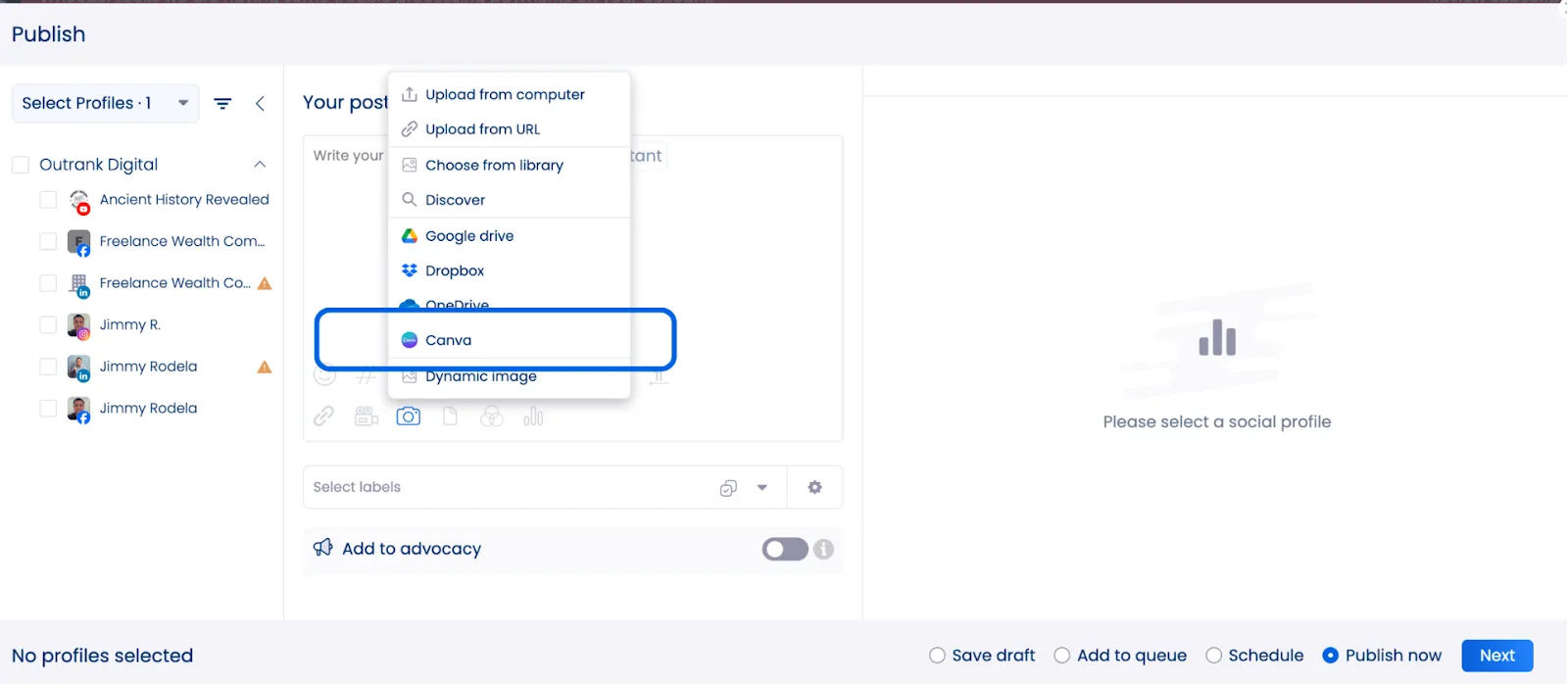
Important tip: You can access Canva via Vista Social. Go to Create > New Post, and click the camera icon so that the Canva icon appears.
How to set up the Canva content planner
Before you integrate Canva into your client campaigns, you need to set it up properly.
- Open Canva and go to Content Planner under the home menu.
- Connect your social media accounts (Facebook, Instagram, LinkedIn, Pinterest, and more).
- Choose permissions for each client account.
- Customize posting times to match your strategy.
- Add your team for collaboration.
Once everything is connected, you’ll see scheduled posts in the calendar view. But remember—this view is only a surface-level planner. For complex campaigns with multiple moving parts, Vista Social provides the depth you need.
Best practices for using the Canva content planner
To get the most out of Canva’s planner, follow the practices outlined below. These methods will help you stay consistent, save time, and get better results from your campaigns.
1. Align campaigns with brand guidelines
Always store brand kits in Canva. This ensures colors, fonts, and logos are consistent across campaigns. You can quickly apply brand assets to any new design, which removes guesswork.
Consistency builds trust and recognition with your audience. It also reduces errors that can happen when teams create designs without guidelines. If you collaborate with others, your brand kit makes sure every post looks polished and on-brand.
2. Use templates for efficiency
Templates save time and keep campaigns aligned. Canva has thousands of pre-built templates you can customize in minutes.
By creating a library of templates for recurring campaigns, you can speed up design production. Duplicating and editing templates also keeps the look and feel consistent across multiple channels. This makes it easier to scale your content without sacrificing quality.
Teams can even share templates, so everyone works from the same base design.
Create a dedicated folder in Canva to organize your templates by campaign type, such as promos, holidays, or product launches. Set aside time each quarter to refresh your templates so they stay on-trend and relevant. Encourage team members to document which templates drive the most engagement and save them as “go-to” designs.
When scheduling posts in Canva, select templates directly from your library to cut design time in half.
3. Batch your content creation
Work on multiple designs in one session. Then schedule them across different days. Batching helps you focus without constant context switching, which boosts efficiency.
It also prevents the stress of scrambling for content right before deadlines. With the Canva content planner, you can map out weeks of content in advance.
This method also makes collaboration easier, since you can review a full set of posts at once.
4. Pair with Vista Social for analytics
Don’t rely on Canva alone for campaign measurement. While Canva helps with scheduling, it lacks deep performance analytics.
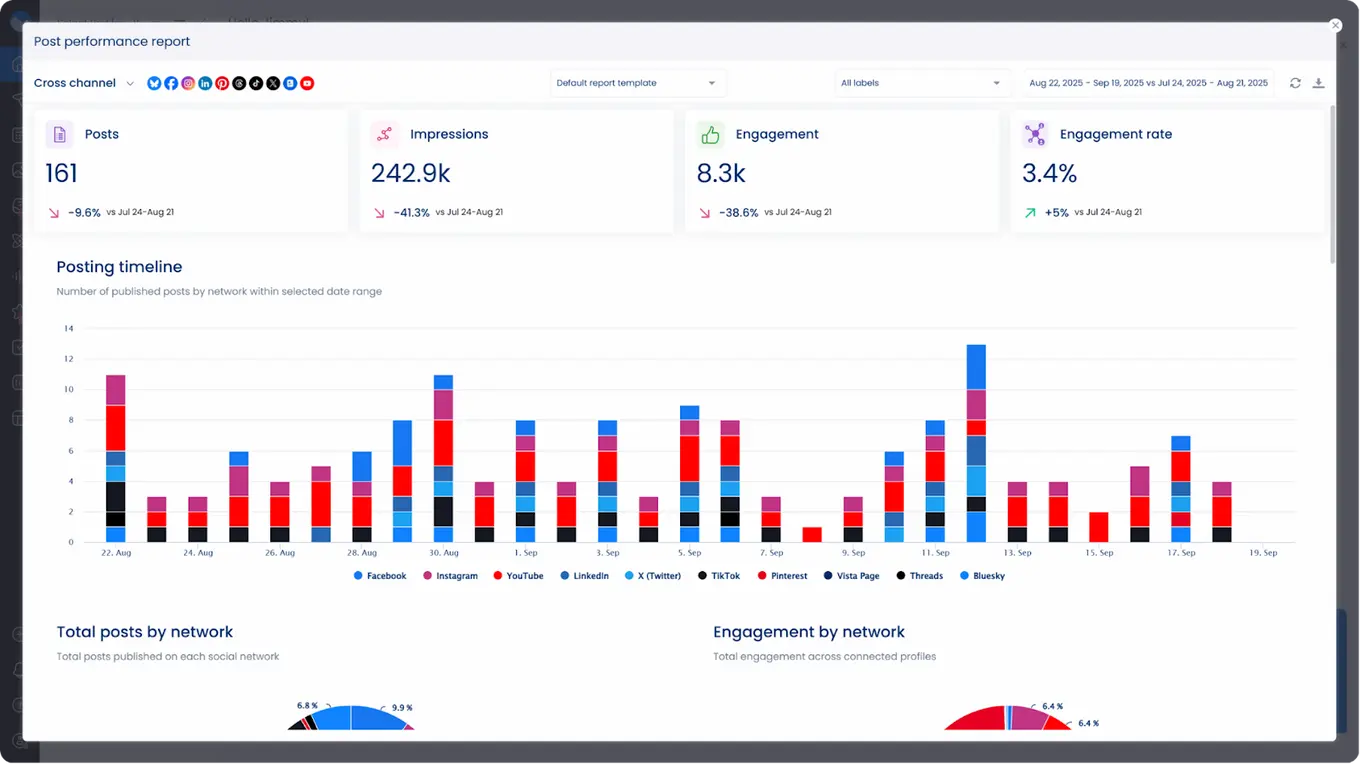
Import posts into Vista Social to track engagement, reach, and conversions. You’ll see which posts drive clicks, comments, and shares, allowing you to refine your strategy. Vista Social also displays competitor benchmarks, allowing you to understand how your content compares.
With unified analytics, you get a clearer picture of ROI and campaign success. You can even segment reports by platform, campaign, or team member to dig deeper into performance.
Vista Social’s data export feature also makes it easy to present insights to executives or clients. Over time, this level of reporting helps you prove the value of your social media efforts and secure more resources.
Using Vista Social to enhance Canva campaigns
If you’re managing multiple clients, you’ll quickly hit Canva’s limits. That’s where Vista Social becomes essential.
Canva is excellent for design and basic scheduling, but it doesn’t provide the control, reporting, and engagement features you need for effective campaign management.
By connecting Canva with Vista Social, you get the best of both worlds: beautiful designs and enterprise-level publishing, analytics, and advocacy. This workflow makes your social media process more efficient, consistent, and client-ready.
Unified publishing calendar
Vista Social lets you manage campaigns across all platforms in one view.
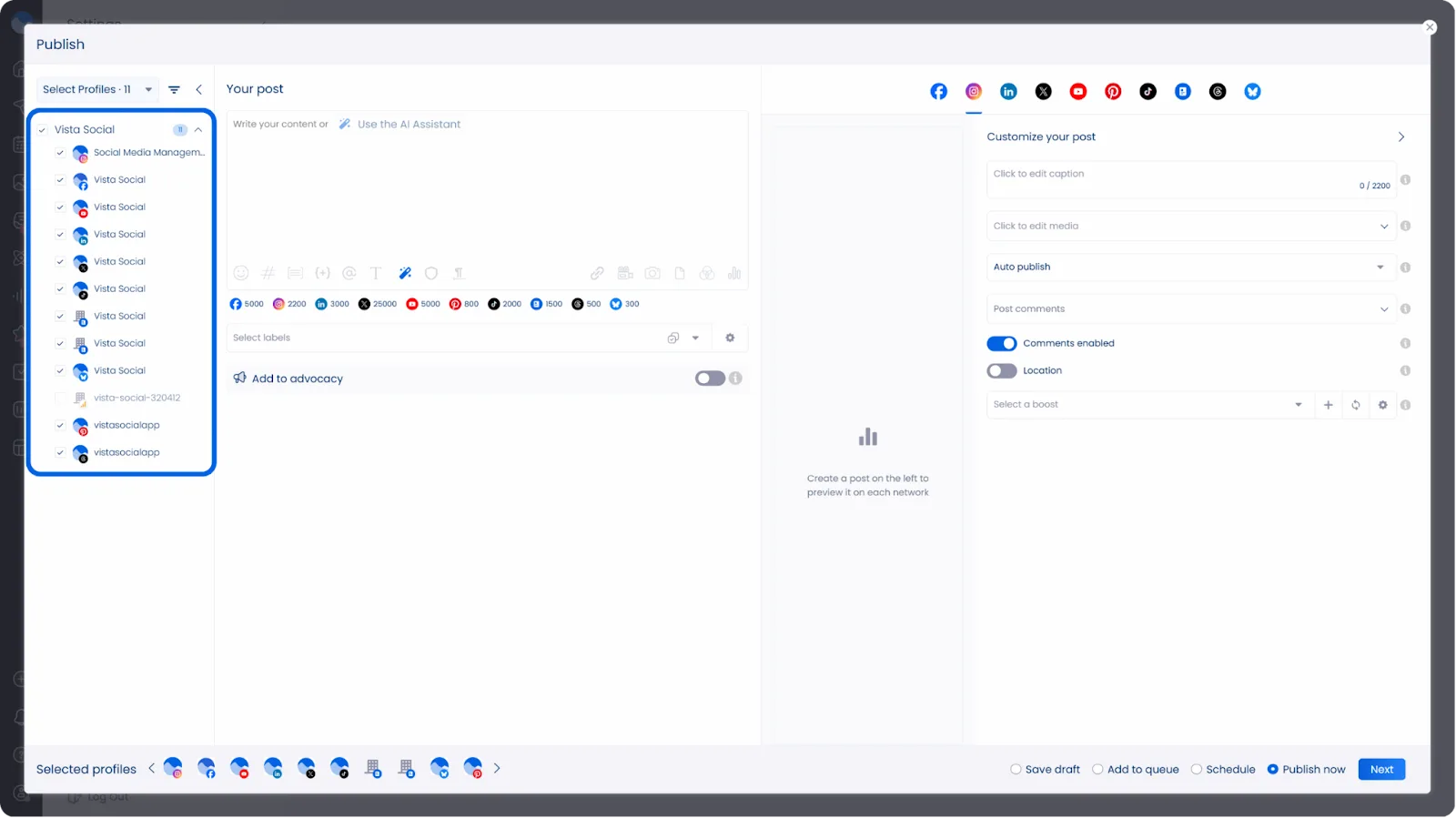
Instead of jumping between Canva’s planner and different native apps, you can publish directly from one dashboard.
Unlike Canva, you can customize content formats for Twitter, LinkedIn, TikTok, Instagram, and more—all within the same calendar. The calendar gives you color-coded labels, approval workflows, and scheduled reminders so nothing falls through the cracks.
You can drag and drop posts to reorganize campaigns in seconds. For agencies, this means less manual tracking and fewer errors when juggling multiple brands.
Another advantage is bulk scheduling. You can upload and queue dozens of Canva designs at once, freeing up time for strategy. Pair this with Vista Social’s time zone settings, and your campaigns will always publish when your audience is most active.
Deep reporting for clients
You can export white-label reports that show exactly how campaigns perform. These reports are client-ready, saving you hours of manual work.
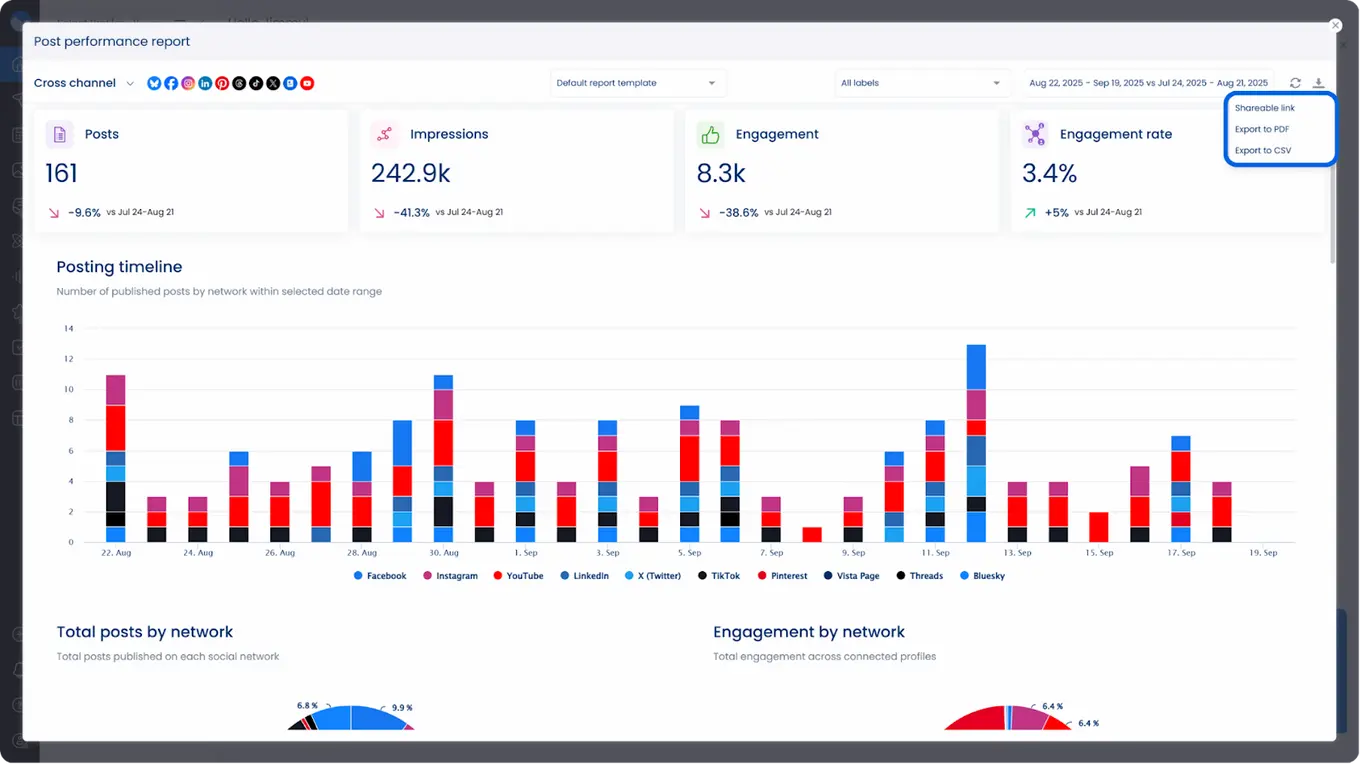
Unlike Canva, which doesn’t provide campaign performance insights, Vista Social allows you to delve into metrics such as reach, impressions, engagement, clicks, and conversions.
You can also break down data by platform, campaign, or even specific content formats. This makes it easy to answer client questions about ROI and demonstrate value.
Vista Social’s scheduled reports feature means you don’t have to scramble at the end of the month—clients get automated insights straight to their inbox.
White-labeling ensures every report is branded with your agency’s logo and colors. This not only looks professional but also builds client trust. With these reports, you shift conversations from guesswork to data-backed strategies that win renewals and upsells.
Real-time engagement
With Vista Social’s social media engagement tool that features a unified inbox, you never miss a message.
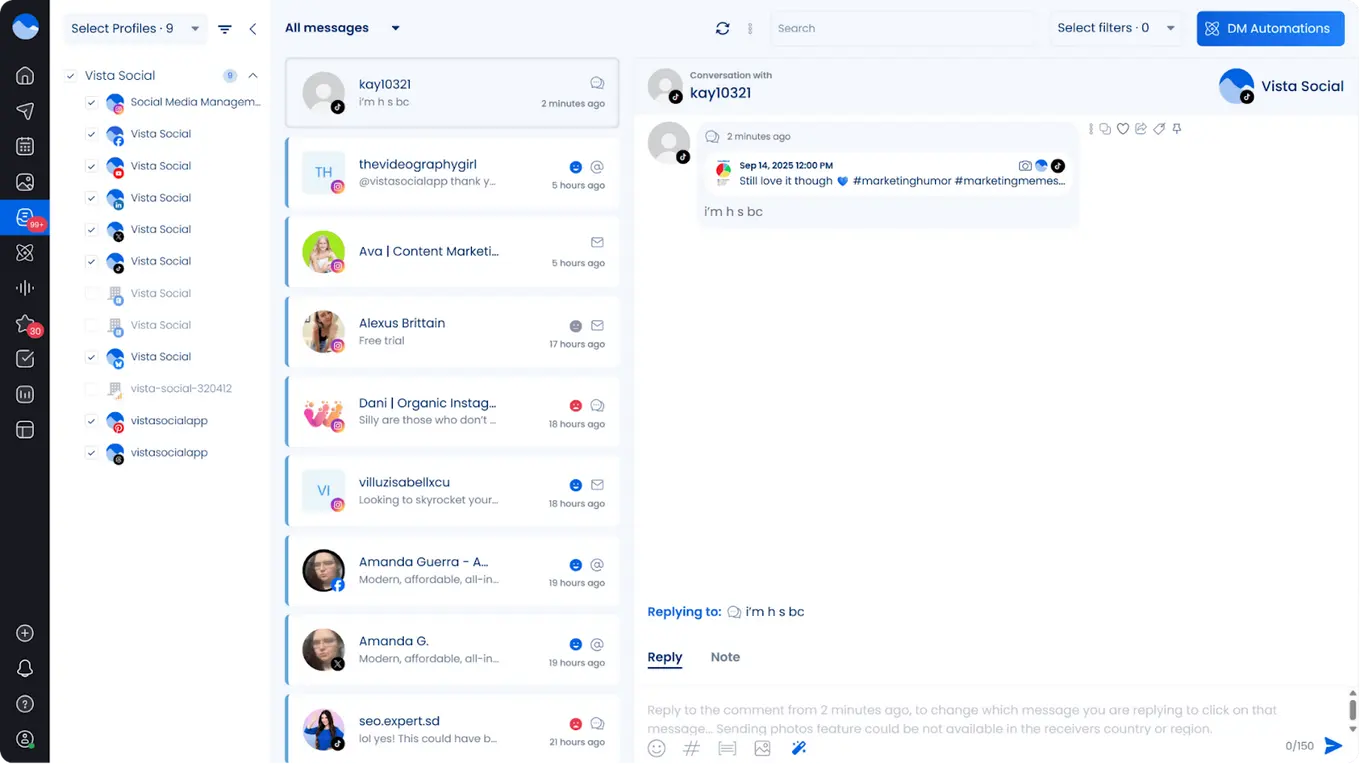
Every comment, DM, and mention from multiple platforms is routed into a single dashboard. This keeps your team from wasting time logging into different social channels.
You can tag, assign, and reply directly—keeping client engagement consistent. For example, you might assign customer service-related messages to one teammate while routing sales inquiries to another. This makes sure no opportunity is missed.
Vista Social also tracks response times, allowing you to monitor and improve the speed at which your team responds. For clients, this demonstrates that you’re not just posting content, but actively managing community engagement. Over time, faster replies improve brand reputation and increase customer loyalty.
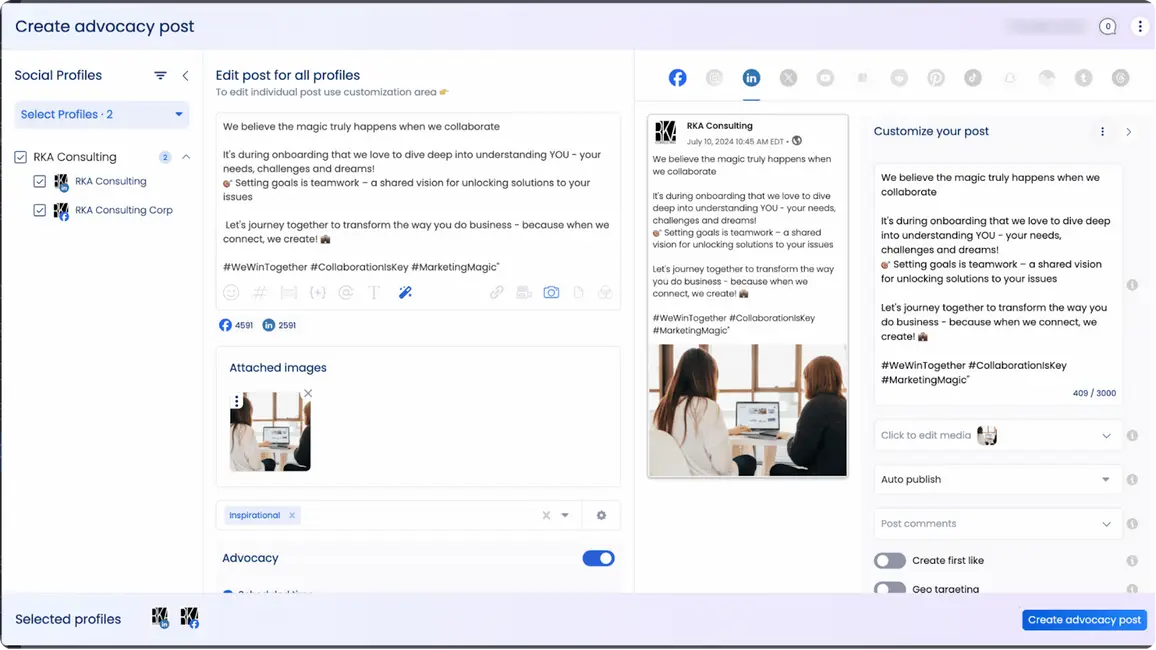
Employee advocacy
Vista Social includes advocacy features that Canva doesn’t offer. You can push approved content for employees to share, expanding reach without additional ad spend. Employee advocacy transforms your employees into brand ambassadors, enabling you to reach new audiences authentically and effectively.
All content is pre-approved, so employees don’t have to worry about compliance or brand guidelines. They simply log in, choose content from a curated feed, and share it on their personal accounts. This makes it easy for teams across departments to participate in social campaigns without adding to your workload.
You can also track advocacy performance in Vista Social’s analytics. This lets you see how much extra reach, engagement, and traffic your employees generate. For brands with limited advertising budgets, employee advocacy provides a cost-effective way to increase visibility and establish trust.
Streamlining client collaboration
One of the biggest challenges in client campaigns is collaboration. Canva’s planner helps with visual approvals, but it lacks structured feedback tools.
While clients can view designs, there’s no simple way to manage revisions, gather feedback, or track approval history. This often forces teams into endless email threads, scattered chats, or confusing spreadsheets that slow down progress.
Vista Social solves this with client collaboration features. Clients can approve, reject, or comment on posts inside the platform. This turns the feedback process into a streamlined workflow where nothing gets lost.
Instead of juggling different tools, both clients and teams work from one centralized hub. This creates transparency and helps clients feel more involved in the process.
With post-level feedback, confusion about which version of content is final disappears. Every approval is logged in the system, leaving a clear audit trail for accountability.
Agencies find this especially valuable during campaign reviews or when multiple stakeholders are involved. No more second-guessing whether a client signed off on a post—the platform documents it automatically.
Another advantage is the ability to set permissions. You can control which clients or team members see drafts, scheduled posts, or reports.
Oversharing is avoided while the right people are kept informed. When clients understand exactly what stage their campaigns are in, trust builds, and unnecessary back-and-forth decreases.
Vista Social also integrates approvals directly into the publishing workflow. Once a post is approved, it automatically moves into the queue for scheduling. Manual steps disappear, reducing the risk of human error.
Instead of copying and pasting approved text or uploading final graphics into another system, teams enjoy a seamless process from approval to publication.
Canva content planner FAQs
Can I use the Canva content planner for free?
Yes. The content planner is available on Canva’s free plan, but posting options are limited compared to the Pro version.
Does Canva content planner work with TikTok?
Yes. You can schedule TikTok videos, but you won’t get detailed analytics or engagement tracking.
Can I manage multiple client accounts with the Canva Content Planner?
You can connect multiple accounts, but managing them is harder compared to Vista Social’s client workspaces.
How does Canva content planner compare to Vista Social?
Canva is best for design and light scheduling. Vista Social is designed for comprehensive campaign management, encompassing analytics, engagement, and reporting.
Should agencies rely only on Canva content planner?
No. Canva works well for design, but agencies need Vista Social for reporting, engagement, and managing multiple clients.
Try Vista Social for free
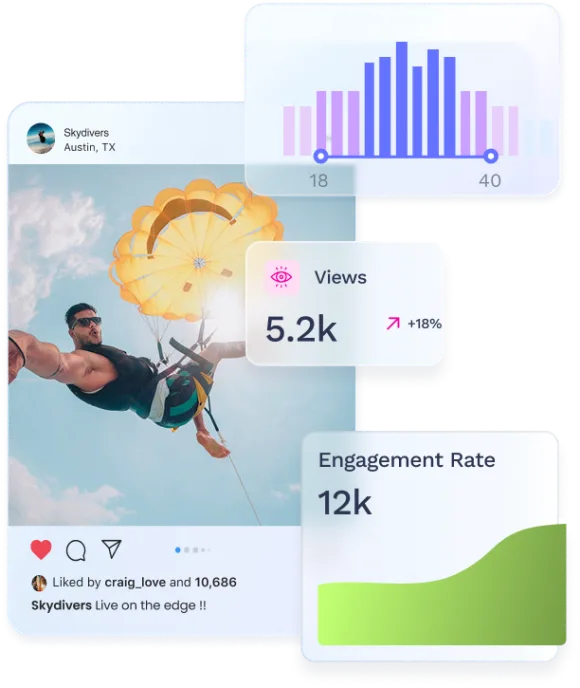
A social media management platform that actually helps you grow with easy-to-use content planning, scheduling, engagement and analytics tools.
Get Started NowAbout the Author

Content Writer
Jimmy Rodela is a social media and content marketing consultant with over 9 years of experience, with work appearing on sites such as Business.com, Yahoo, SEMRush, and SearchEnginePeople. He specializes in social media, content marketing, SaaS, small business strategy, marketing automation, and content development.
Loading related tools...



Tools
PublishingAnalyticsEngagementIntegrations
FacebookInstagramLinkedInRedditSnapchatThreadsTikTokX (Twitter)YouTubeBlueskyVista Page (link-in-bio)All IntegrationsCopyright © 2026 Vista Social LLC. All Rights Reserved.